Introduction: Gmail Takeout MBOX File - How to Open and Convert (2026)
Google Takeout is one of the most common ways users export Gmail data for backup, migration, or legal retention. But after the download finishes, many users are stuck with one or more large files and the same question: how do I open a Gmail Takeout MBOX file and actually use the email data?
This guide explains what the Gmail Takeout MBOX file is, how to safely open it in supported applications, and how to convert it for Outlook workflows. It also includes practical warnings about large archives, split downloads, label behavior, and validation so you do not assume the export is complete when important mail is still missing.
Quick answer
- To open a Gmail Takeout MBOX file: import it into Thunderbird (commonly with ImportExportTools NG) or into Apple Mail on macOS.
- To convert for Outlook: use a Thunderbird-to-EML-to-Classic-Outlook workflow for small batches, or a dedicated MBOX to PST converter for larger archives.
- Before opening or converting: extract the entire Takeout archive first and confirm all split archive parts were downloaded.
- Before final sign-off: validate folders, counts, sample messages, and attachments in the destination app.
Related guides:How to convert MBOX files, How to convert MBOX to PST, How to export Gmail to PST.
What Is a Gmail Takeout MBOX File?
A Gmail Takeout MBOX file is a mailbox export file generated when you export Gmail data from Google Takeout. MBOX is a standard mailbox container format used by multiple email clients and tools. It stores many messages in one mailbox file, which makes it practical for archive and migration workflows.
- Source: Google Takeout export of Gmail data.
- Format: MBOX (mailbox container), usually inside a Takeout archive download.
- Common use cases: offline backup, legal retention, migration to another client, conversion to PST for Outlook.
Important: Outlook does not natively open MBOX files directly. If your target is Outlook, you usually need a bridge workflow or a converter to generate a PST file.
What You Get in a Google Takeout Download (and Why It Matters)
Google's Takeout export workflow lets you customize archive delivery (file type and archive size). For large exports, Google can split the download into multiple archive files. If you miss one part and extract only the first archive, you may think your Gmail export is incomplete when the problem is only a partial download.
What to check after download
- Archive format: Google Takeout supports downloadable archives such as
.zipor.tgzdepending on your export settings. - Split archives: large exports may be delivered in multiple parts based on the archive size you selected.
- Archive browser file: Google notes an
archive_browser.htmlfile is included to help browse exported data. - Mail export location: your Gmail export data is typically under the
Takeoutfolder in the extracted archive.
Practical takeaway: extract all parts first, then inspect the full extracted folder before starting any import or conversion work.
Method Comparison: Best Way to Open or Convert Gmail Takeout MBOX
| Method | Best For | Output | Risk | Effort |
| Thunderbird import (ImportExportTools NG) | Viewing and working with MBOX on Windows/macOS/Linux | Open/read mailbox in Thunderbird | Low/Medium | Medium |
| Apple Mail import (Mac) | Quick mailbox viewing on macOS | Open/read mailbox in Mail | Low | Low/Medium |
| Manual Thunderbird -> EML -> Classic Outlook | Small mailbox batches that must end in PST | PST (manual workflow) | Medium/High | High |
| Direct MBOX to PST converter workflow | Large archives, repeatable Outlook migration | PST and other formats | Low/Medium | Low/Medium |
Recommended sequence: verify the Takeout archive first, open the MBOX in a safe viewer/client, then choose a conversion path based on size and destination requirements.
Pre-Import Checklist Before You Open a Gmail Takeout MBOX File
- Download all Takeout archive parts: if your export was split, collect every part before extraction.
- Extract to a local folder: avoid opening directly from cloud-synced locations while testing.
- Keep the original archive untouched: work on extracted copies, not the only downloaded copy.
- Estimate mailbox size: file size affects method choice and import time.
- Decide your goal first: view the mailbox, migrate to Thunderbird, or convert to PST for Outlook.
- Plan validation: decide what counts as success (folder list, sample searches, attachment opening, date ranges).
This preparation prevents the most common mistake: running a conversion on a partial or unverified export.
Method 1: Download and Prepare Gmail Takeout Mail Export (Google Takeout)
Use this method if you have not created the export yet or if you need to recreate a clean export before import/conversion.
Step-by-step (Google Takeout)
- Open Google Takeout and sign in to the Google account that owns the Gmail data.
- Select the data to export (many users use Deselect all and then select only Mail/Gmail-related data to keep export size manageable).
- Click Next step.
- Choose export settings such as delivery method, archive file type (for example
.zipor.tgz), and archive size. - Create the export and wait for Google to finish building it (large mailboxes can take time).
- Download all archive files provided for that export.
- Extract the archive(s) to a local folder and confirm the
Takeoutfolder is present. - Check for
archive_browser.htmland the Mail export content before continuing.
Important: if the export is split across multiple archives, missing one part can make the mailbox appear incomplete after extraction.
Method 2: Open Gmail Takeout MBOX File in Thunderbird (Recommended for Windows)
Thunderbird is one of the most practical ways to open and review MBOX mailboxes. In many real-world workflows, users install the ImportExportTools NG add-on to reliably import MBOX files into Thunderbird Local Folders.
Compatibility note: Before using the add-on, confirm compatibility with your installed Thunderbird version on the add-on page and check the developer release notes if you are on a very new Thunderbird build.
Procedure (Thunderbird + ImportExportTools NG)
- Open Mozilla Thunderbird.
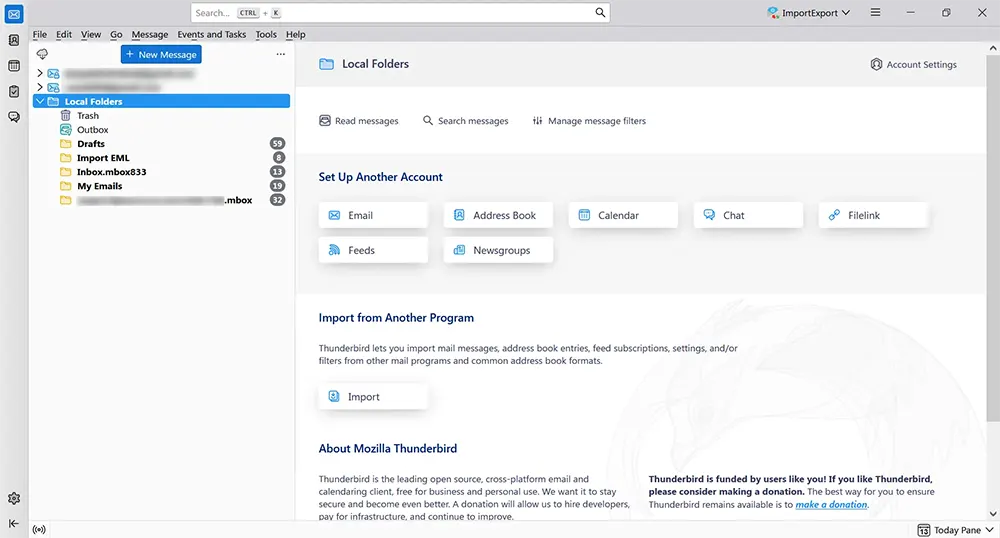
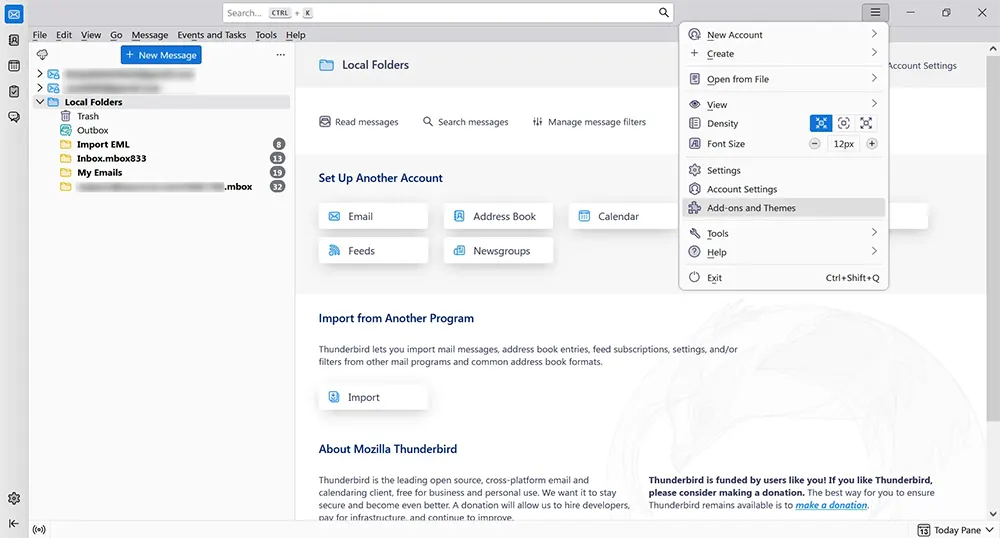
- Open Add-ons and Themes from the Thunderbird menu.
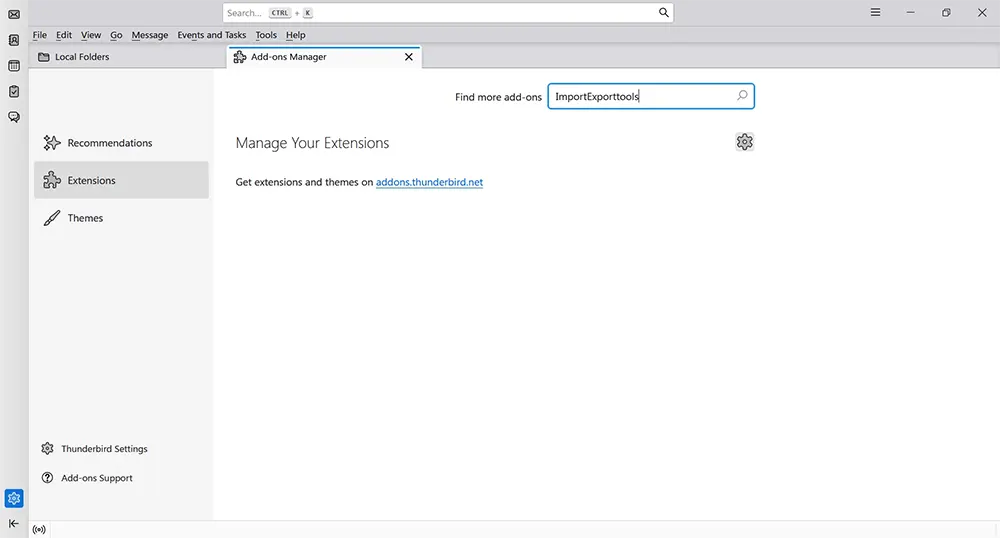
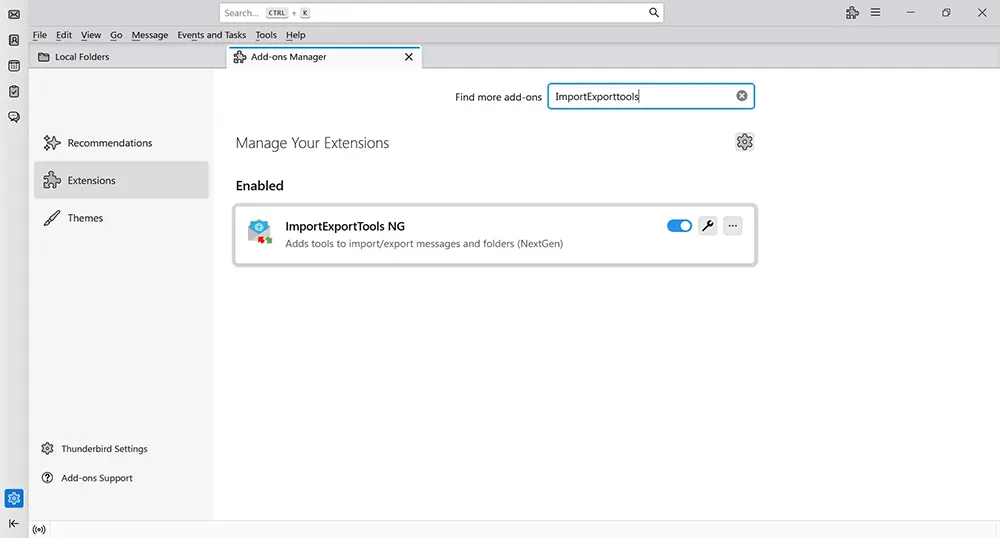
- Search for ImportExportTools NG in the Add-ons Manager and review the listing details.
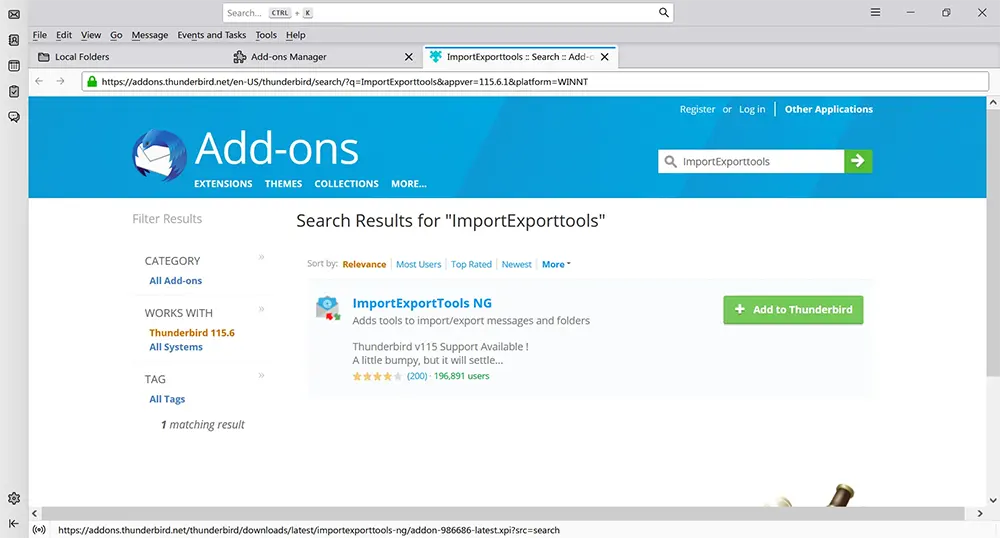
- Click Add to Thunderbird and complete the install prompts.
- Confirm the add-on is enabled, then close the Add-ons Manager.
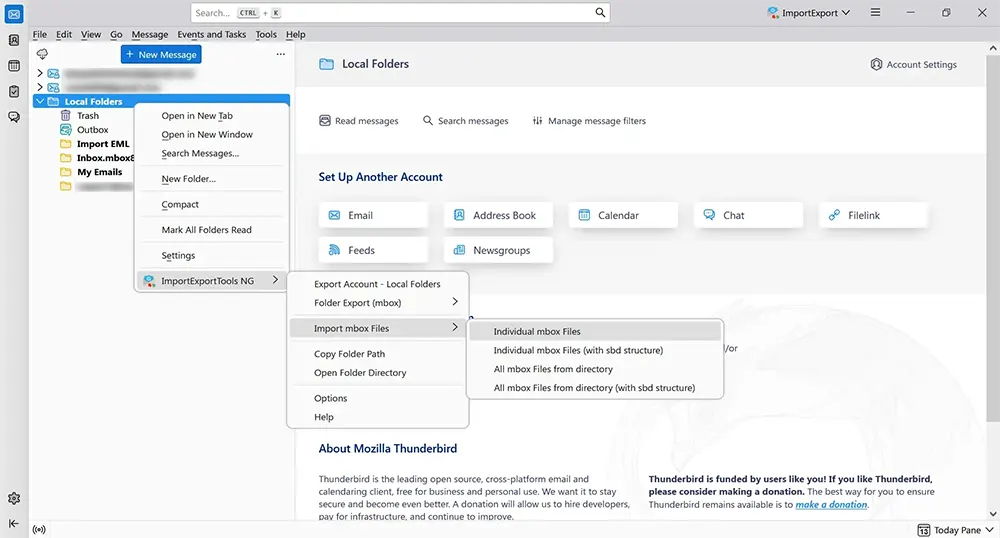
- In Thunderbird, right-click the target local area (commonly Local Folders) and open the ImportExportTools NG import command for MBOX files.
- Choose the Gmail Takeout
.mboxfile from the extracted Takeout folder.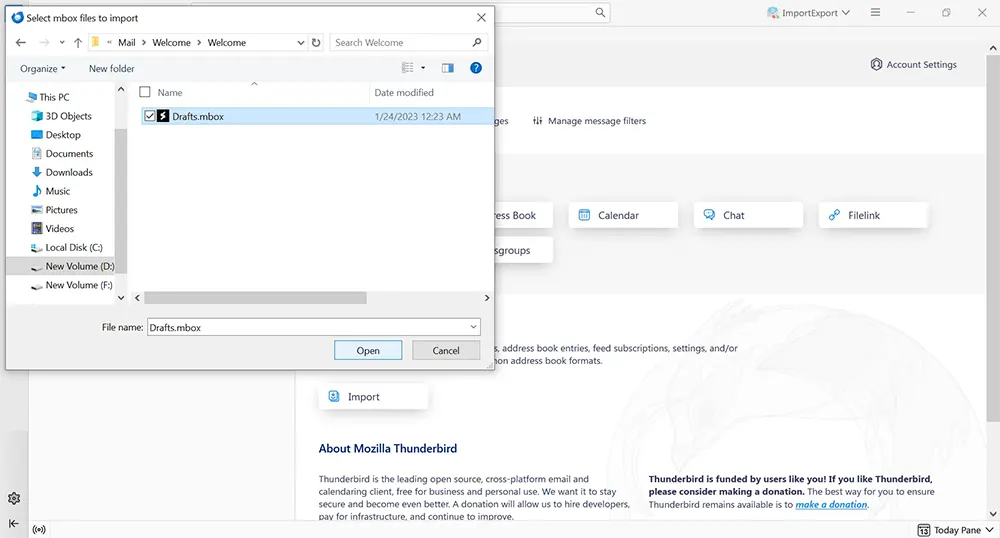
- Wait for Thunderbird to import and index the mailbox, then open the imported folder and verify sample messages.
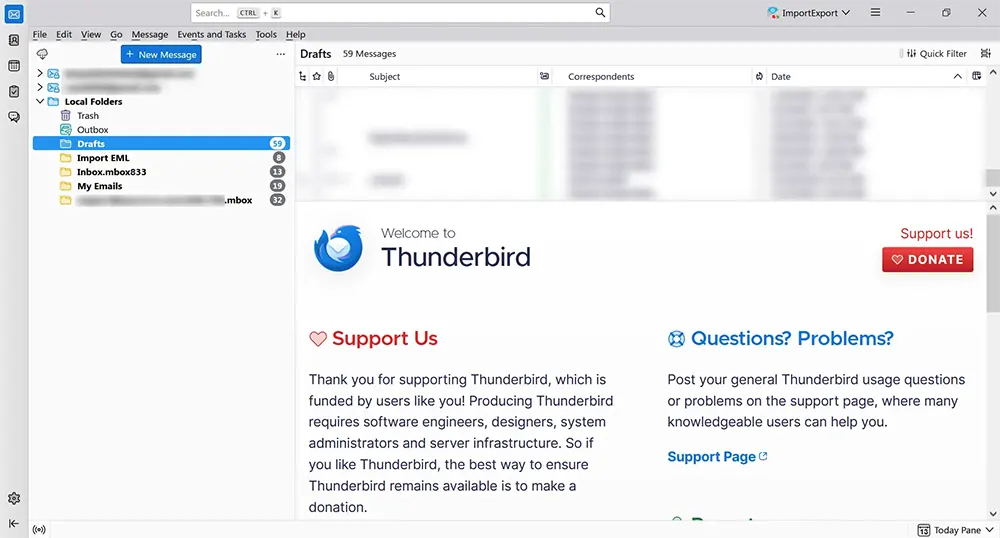
Validation tip: check old and recent messages, search a few known senders, and open attachments before assuming the import is complete.
Method 3: Open Gmail Takeout MBOX File in Apple Mail (Mac)
If you are on macOS and mainly need to read or review the mailbox, Apple Mail provides a built-in mailbox import workflow that supports MBOX.
Procedure (Mail on Mac)
- Open the Mail app on your Mac.
- Go to File > Import Mailboxes.
- Choose the option for Files in mbox format.
- Browse to the extracted Gmail Takeout MBOX file and select it.
- Complete the import and wait for Mail to finish processing.
- Review the imported mailbox in Mail (Apple commonly places imports in an import-related section/folder).
- Open sample messages and attachments to confirm readability.
When to use this: quick review, legal inspection, or Mac-based archive access. If the final target is Outlook PST, use Method 4 or Method 5 after review.
Method 4: Convert Gmail Takeout MBOX to PST Manually (Small Batches Only)
There is no direct built-in MBOX-to-PST conversion in Outlook. A practical manual route is to open the MBOX in Thunderbird, export messages to EML, import/drag them into Classic Outlook, and then export a PST.
Classic Outlook note: The PST export steps below use Classic Outlook for Windows. New Outlook behavior and PST features differ by build.
Manual workflow (Thunderbird -> EML -> Classic Outlook -> PST)
- Complete Method 2 and verify the Gmail Takeout mailbox opens correctly in Thunderbird.
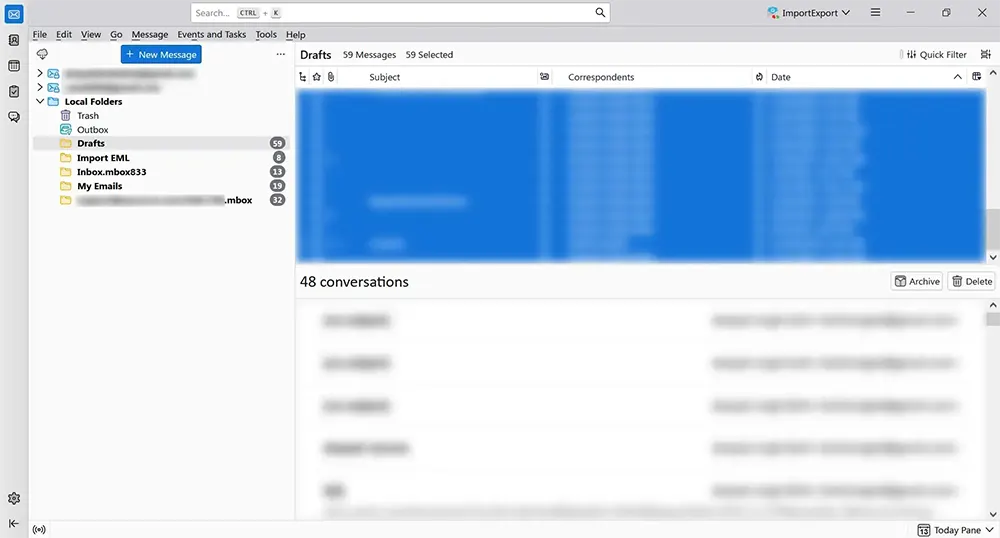
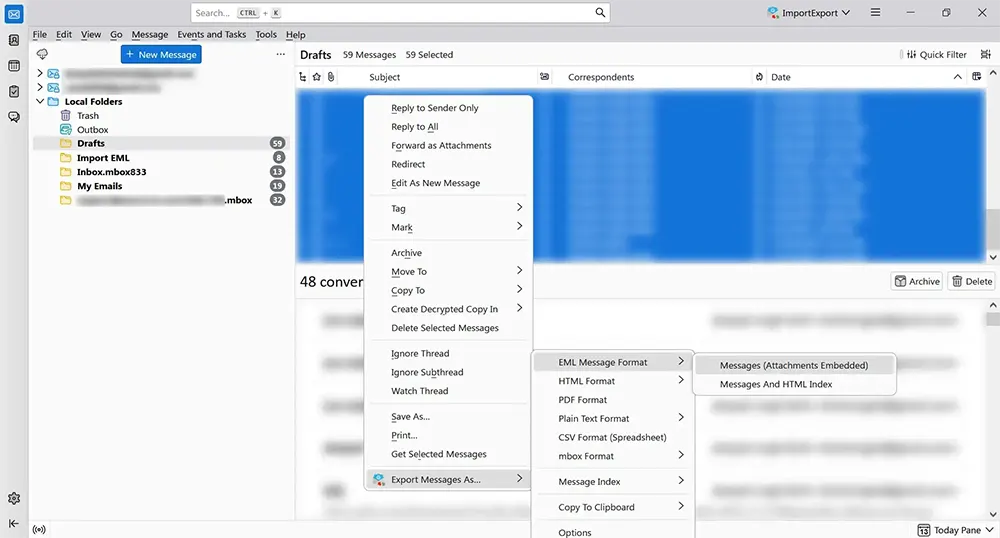
- In Thunderbird, select the target folder(s) and use ImportExportTools NG to export messages to EML format.
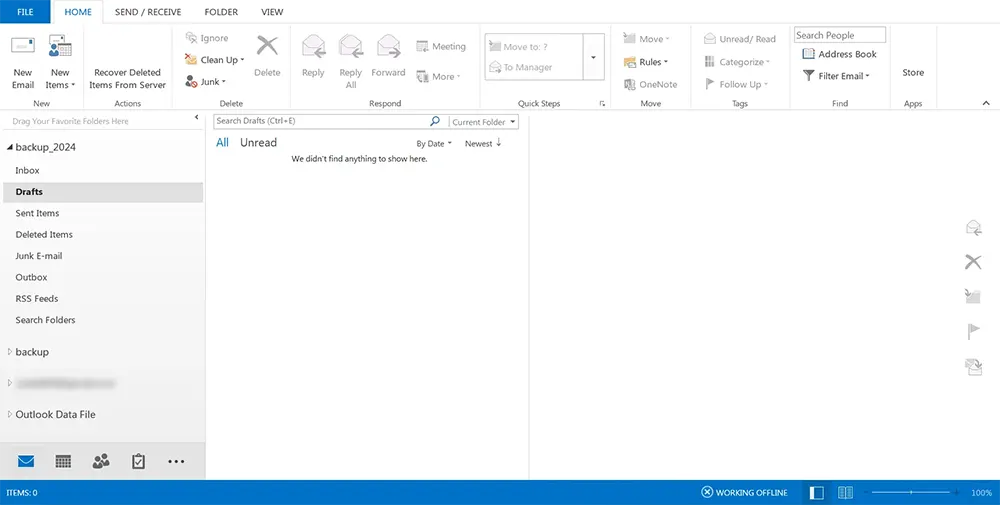
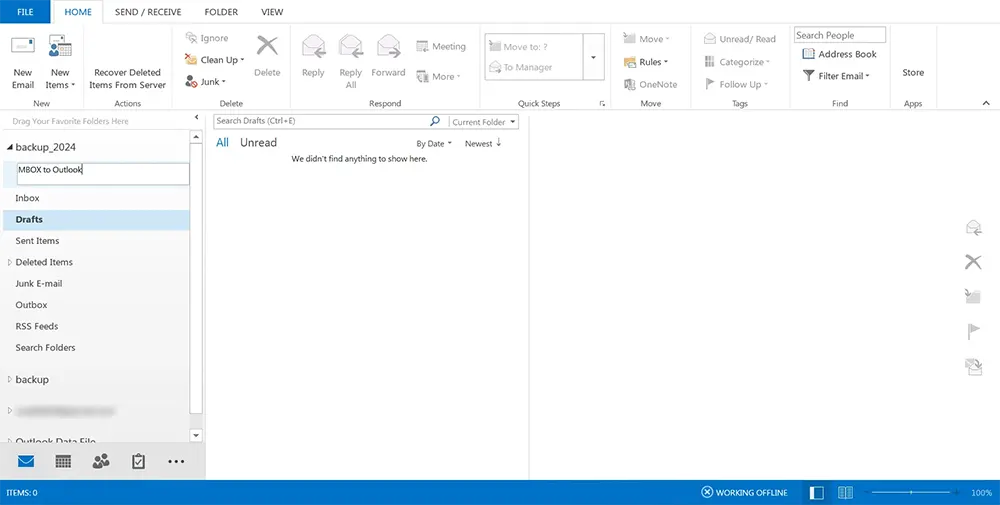
- Open Classic Outlook and create a destination folder (or a new PST folder tree) for the imported emails.
- Drag the exported EML files into the target Outlook folder in small batches and wait for Outlook to finish processing each batch.
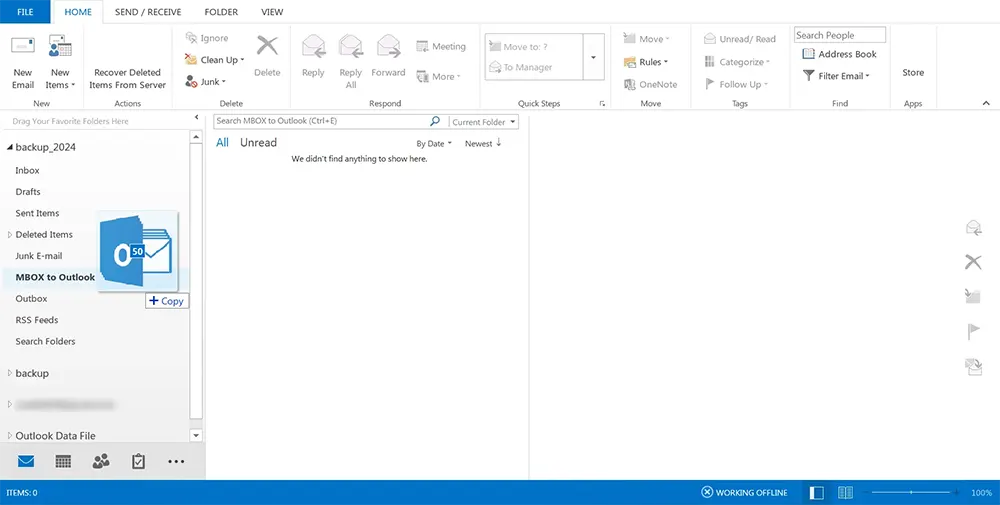
- After the messages appear correctly in Outlook, go to File > Open & Export > Import/Export.
- Select Export to a file and choose Outlook Data File (.pst).
- Select the imported folder/mailbox and enable Include subfolders if needed.
- Choose a local destination folder (avoid exporting directly to a OneDrive-synced location) and finish the export.
- Open the new PST in Outlook and validate sample folders, messages, and attachments.
Manual method limitations: This is workable for smaller datasets, but large Gmail Takeout archives become slow and error-prone with repeated EML batch imports.
Method 5: Convert Gmail Takeout MBOX to PST with SysCurve MBOX to PST Converter
For large mailboxes, multi-folder archives, or repeatable migration work, a direct MBOX conversion workflow is usually easier to control than manual EML batching. The SysCurve MBOX to PST Converter is designed for MBOX-based mailboxes, including Gmail Takeout exports.
Workflow (SysCurve method)
- Close Thunderbird and Outlook before starting the conversion workflow.
- Create a backup copy of the extracted Gmail Takeout MBOX file(s).
- Open the SysCurve tool and add the Gmail Takeout MBOX source file.
- Preview the mailbox and confirm the folder/message tree loads correctly.
- Select the required output format as PST (or another format if your destination differs).
- Choose a local output destination and review export options for the current build.
- Click the on-screen Export button (wording may vary slightly by build) to start processing.
- After conversion completes, open the output PST in Outlook and validate sample messages, attachments, and folder structure.
Validation reminder: always confirm folder structure, message readability, and attachment-heavy samples before deleting the original Takeout archive or extracted mailbox copy.
How to Choose the Right Method
- Need to read the mailbox only: use Thunderbird (Method 2) or Apple Mail on Mac (Method 3).
- Need PST for Outlook and archive is small: use the manual EML + Classic Outlook route (Method 4).
- Need PST for Outlook and archive is large: use a direct MBOX to PST conversion workflow (Method 5).
- Need to verify a legal/retention export first: import and review in Thunderbird or Apple Mail before any conversion.
In practice, the best sequence is: verify Takeout archive -> open and validate MBOX -> convert only after confirming the source is complete.
Validation Checklist After Opening or Converting Gmail Takeout Mail
- Confirm the expected mailbox/folder appears in the destination app.
- Open sample messages from old and recent periods.
- Verify sender, recipient, subject, and timestamps on random items.
- Open attachment-heavy messages (PDF, images, Office files, ZIP if present).
- Run a few sample searches by sender or subject keyword.
- If PST was created, reopen it in Outlook and confirm no immediate errors.
- Keep one untouched copy of the original Takeout archive until validation is complete.
Troubleshooting: Gmail Takeout MBOX File Problems
Issue: The MBOX file will not import
Check whether the Takeout archive was fully extracted and whether all split archive parts were downloaded. Also confirm you selected the mailbox file from the extracted Takeout folder, not only the top-level archive file.
Issue: The import looks incomplete
This is often caused by partial downloads or partial extraction. Recheck the Takeout export parts and rebuild the extracted folder before re-importing.
Issue: Thunderbird add-on menu looks different
Thunderbird and add-on UI labels can vary by version. Confirm you are using the current ImportExportTools NG build compatible with your Thunderbird version.
Issue: Outlook manual import is too slow
Use smaller EML batches or switch to the direct MBOX to PST converter workflow for large archives.
Issue: PST export completed but data seems wrong
Reopen the source mailbox in Thunderbird and compare sample messages/folders. The root issue may be in the source import step, not the PST export step.
Frequently Asked Questions: Gmail Takeout MBOX File
How do I open a Gmail Takeout MBOX file on Windows?
The most practical method is importing the MBOX file into Thunderbird, commonly with ImportExportTools NG. Outlook does not open MBOX directly.
Can Outlook open Gmail Takeout MBOX files directly?
No. Outlook uses PST/OST workflows and does not natively open MBOX files as mailbox sources.
Can I open Gmail Takeout MBOX on Mac without Thunderbird?
Yes. Apple Mail on macOS can import mailbox files in MBOX format using its import mailbox workflow.
What is the best way to convert Gmail Takeout to Outlook PST?
For small datasets, a Thunderbird-to-EML-to-Classic-Outlook workflow can work. For larger archives, a direct MBOX to PST converter workflow is usually more practical.
Why does my Takeout export look incomplete?
Most often because the export was split into multiple archives and one or more parts were not downloaded or extracted.
Should I delete the Takeout archive after import?
Keep the original Takeout archive and at least one extracted copy until you finish validation in the destination app and confirm the converted/exported output is complete.
Do Gmail labels convert to Outlook folders perfectly?
Not always. Gmail and Outlook organize mail differently, so folder/label behavior may need review after conversion or manual import workflows.
Can I use online MBOX viewers for Gmail Takeout?
You can, but for privacy-sensitive mail archives, local/offline workflows are generally safer and easier to control.
Sources
- Google Account Help: Download your Google data
- Google Takeout
- Thunderbird Add-ons: ImportExportTools NG
- Mozilla Support: Installing an add-on in Thunderbird
- Mozilla Support: Import settings and data into Thunderbird
- Apple Support: Import or export mailboxes in Mail on Mac
- Microsoft Support: Export Outlook items to a PST file
- RFC 4155: The application/mbox Media Type
- SysCurve MBOX to PST Converter
Final Word
A Gmail Takeout MBOX file is useful only after you verify the export, open it in the right client, and validate the output of any conversion you run. Start by confirming the Takeout archive is complete, use Thunderbird or Apple Mail to inspect the mailbox, and choose the conversion path based on archive size and destination. For Outlook-ready PST output at scale, a direct MBOX to PST workflow is usually the most controlled option.
