Introduction: How to Convert TGZ to MBOX (Zimbra to Thunderbird) in 2026
When users search convert TGZ to MBOX, they are usually trying to move a Zimbra mailbox archive into Thunderbird or another email client that reads MBOX. The confusion happens because a TGZ file is not the same thing as an MBOX file. TGZ is a compressed archive format, while MBOX is a mailbox format used to store messages.
This guide explains the real workflow step by step: how to export a TGZ archive from Zimbra (if needed), how to safely extract it, how to import email data into Thunderbird using a supported add-on workflow, and when to use a direct Zimbra converter to generate MBOX output with less manual work.
Authenticity note: Zimbra and Thunderbird UI labels can vary by version/build. This guide uses current, common workflows and points to official references where available.
Quick answer
- TGZ is a compressed archive, not a mailbox file: you usually extract the TGZ first, then work with the mail content inside.
- For a manual Thunderbird workflow (most common): extract the TGZ, import the extracted email content (often
.emlfolders/files) into Thunderbird, then export the Thunderbird folder(s) to MBOX. - For a cleaner direct output: use a Zimbra TGZ converter workflow and export to MBOX directly.
- Before any conversion: keep one untouched backup copy of the original TGZ file and work from a local folder (not OneDrive/network paths).
Scope note: This guide focuses on email migration (TGZ to Thunderbird/MBOX). Contacts and calendar data usually require separate import steps.
Related guides:How to convert Zimbra to PST, How to convert MBOX files, How to convert MBOX to PST.
TGZ vs MBOX: What Is the Difference?
Understanding the file types first prevents most failed conversions.
| Format | What It Is | Typical Use |
| TGZ | A compressed .tar.gz archive (container) | Zimbra export package / portable backup archive |
| MBOX | A mailbox file format that stores multiple emails in one file | Thunderbird, Apple Mail, archive and migration workflows |
Important: A Zimbra TGZ export can contain email data plus other mailbox items (depending on export scope). MBOX is primarily an email message format. Contacts and calendar exports are not part of MBOX mail import and usually require separate handling (for example, vCard/ICS or platform-specific export structures depending on environment).
In Zimbra, contact/calendar exports can be exported separately as CSV/ICS. Inside a full TGZ account export, mail is commonly stored as EML and other items may appear in Zimbra-specific export structures depending on version/workflow. That is why a manual Thunderbird workflow often starts with an EML-directory import rather than direct MBOX import.
How Zimbra TGZ Export Fits into a Thunderbird Migration
Zimbra Web Client exports mailbox data in a TGZ archive. That archive is a packaged export, not a file you open directly in Thunderbird. The manual method is often a migration workflow, not a one-click direct format conversion. The practical path is:
- Export from Zimbra to TGZ (if you do not already have the archive).
- Extract the TGZ archive safely to a local folder.
- Import the extracted mail content into Thunderbird (commonly EML-directory import via add-on), then export the Thunderbird folder(s) to MBOX; or use a converter to export MBOX directly.
This is why many users say “convert TGZ to MBOX” even though part of the work is extraction, import, and then Thunderbird-side MBOX export.
Optional: Export a Fresh TGZ from Zimbra Web Client (If You Do Not Already Have One)
If you already have a TGZ archive, skip to the next section. If not, export a fresh archive from Zimbra first so you are not working from an old copy.
Procedure (Zimbra Web Client)
- Sign in to the Zimbra Web Client.
- Open Preferences.
- Go to Import/Export.
- Choose the data scope (all folders or selected folders, depending on your environment and export goal).
- Choose the export type and export the mailbox data as a TGZ archive.
- Download the TGZ file and save it to a local folder.
Version note: Zimbra interface wording and export permissions can vary by edition/build and admin policy. If Import/Export is missing, check with your administrator.
Method Comparison: Convert TGZ to MBOX (Zimbra to Thunderbird)
| Method | Best For | Output | Risk | Effort |
| Manual extraction + Thunderbird import/export | Users who want a free/controlled path and can verify folder-by-folder | MBOX (via Thunderbird export from imported EML content) | Medium | Medium/High |
| SysCurve Zimbra converter (TGZ -> MBOX) | Large mailboxes, cleaner repeatable workflow, selective export | MBOX (and other formats) | Low/Medium | Low/Medium |
Recommended sequence: validate the TGZ archive first, then choose manual import for smaller/test jobs or a converter workflow for larger migrations.
Pre-Conversion Checklist (Do This Before You Start)
- Keep the original TGZ untouched: make a copy and work from the copy.
- Use local storage: extract and convert on a local disk, not a cloud-synced/network folder.
- Check free disk space: extraction + conversion can temporarily require multiple times the TGZ size.
- Decide your end goal: Thunderbird-only access, MBOX archive, or later conversion to PST.
- If using Thunderbird add-on import: confirm add-on compatibility with your installed Thunderbird version first.
- Define validation rules: expected folders, sample dates, attachments, and search tests.
This preparation step reduces the most common support issues: partial extraction, duplicate imports, and wrong file selection.
Method 1: Extract the Zimbra TGZ and Identify the Mail Content (Manual Preparation)
This method prepares the Zimbra export so Thunderbird can import the email content correctly. The key authenticity point is that a TGZ export does not always give you a single ready-to-import MBOX file. In many Zimbra/Zextras workflows, you should expect an EML-first manual path after extraction.
Workflow
- Copy the original TGZ file to a working folder (for example,
D:\Zimbra_TGZ_Working\). - Use a trusted archive tool (such as 7-Zip or a system archive utility) to extract the
.tgzfile. - If your extractor produces a
.tarfile first, extract the.tarfile as the next step. - Open the extracted folder tree and inspect the exported mailbox content.
- Identify how the email data is stored in the export. In many Zimbra/Zextras workflows, exported email content is represented as
.emlmessages/folders. - Keep contacts/calendar exports separate for later handling, because MBOX import is focused on email messages.
- Create a clean test subfolder (for example,
Prepared_TGZ_Test) and copy only one mail folder/file set for the first import test. - Manual path used in this guide: identify EML message folders/files for Thunderbird EML-directory import in Method 2, then export the imported Thunderbird folder to MBOX.
- Note: if your extracted data already includes valid MBOX files, you do not need TGZ-to-MBOX conversion. You can validate and use those MBOX files directly.
Authenticity caveat: Zimbra export structures can differ. If you cannot clearly identify the mail content or need a more controlled output, use Method 3 (direct TGZ to MBOX converter workflow).
Method 2: Thunderbird Manual Workflow (TGZ -> Thunderbird -> MBOX) with ImportExportTools NG
This is the most practical manual route for Zimbra-to-Thunderbird migrations when you need a true step-by-step process. ImportExportTools NG adds import/export functions (including EML/EMLX import and MBOX export), which lets you complete an actual TGZ -> Thunderbird -> MBOX workflow.
Compatibility note: Before using the add-on, confirm compatibility with your installed Thunderbird version on the add-on page and check the developer release notes/versions page if you are on a very new Thunderbird build.
Important note: ImportExportTools NG import options are typically used under Local Folders, not IMAP folders. Create/use a local target so the import/export menu options appear correctly.
Common setup (Thunderbird + ImportExportTools NG)
- Open Mozilla Thunderbird.
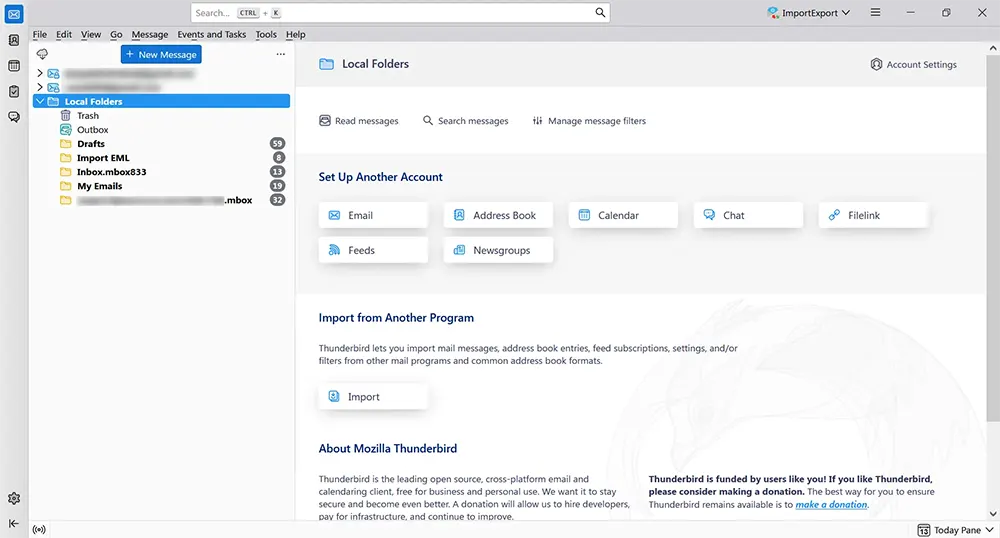
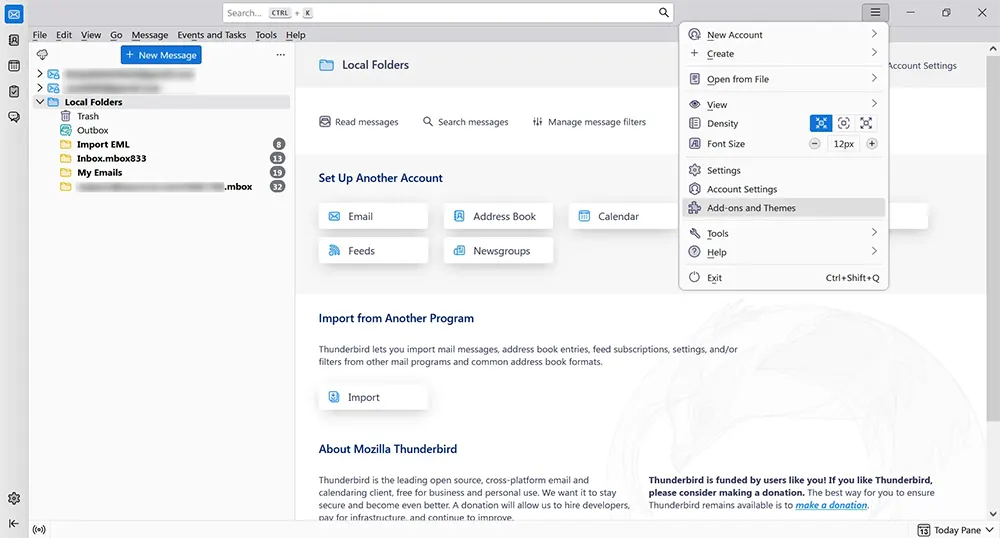
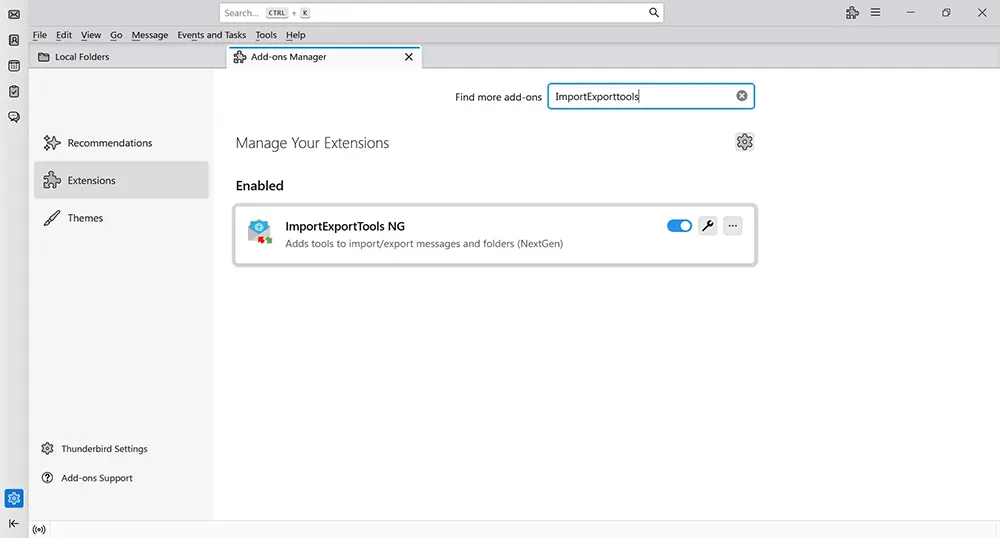
- Open Add-ons and Themes from the Thunderbird application menu.
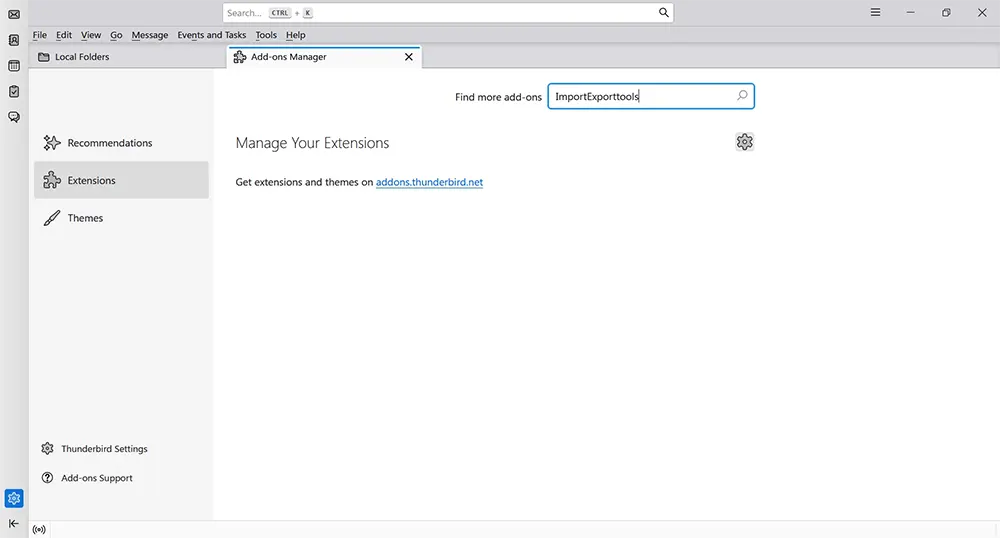
- Search for ImportExportTools NG.
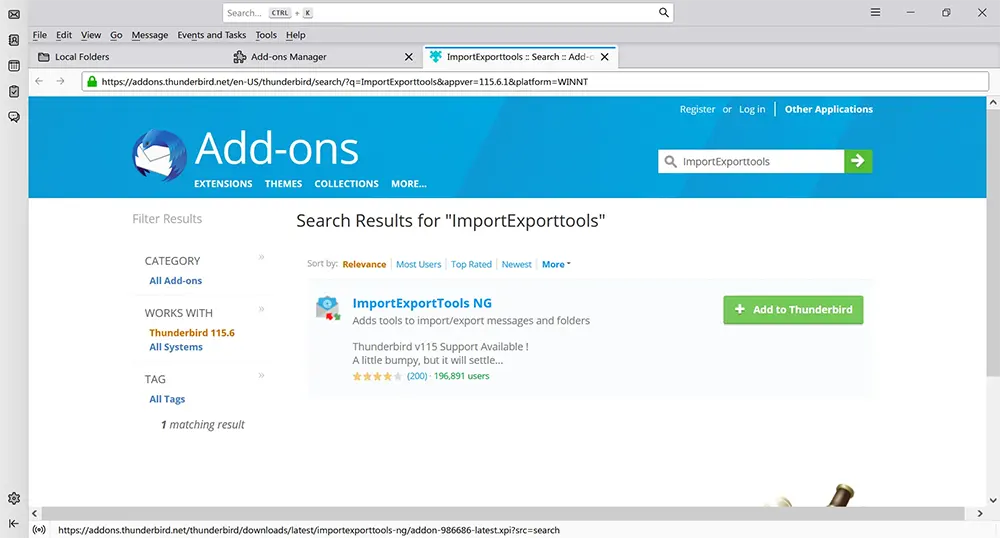
- Click Add to Thunderbird and complete installation.
- Confirm the add-on is enabled.
- Create or choose a target folder under Local Folders.
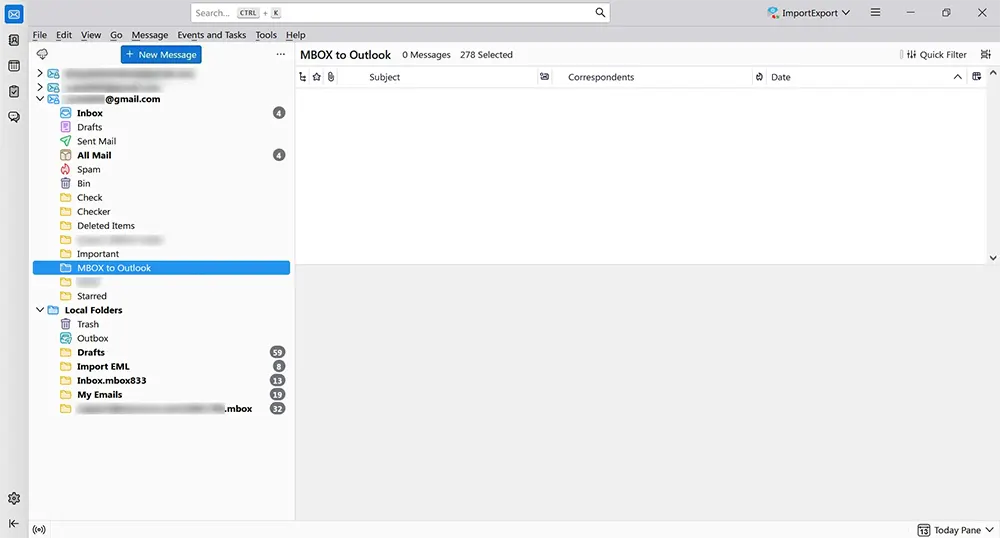
- Right-click the target folder (or Local Folders) and open the ImportExportTools NG import menu.
Manual steps (EML directory import -> MBOX export)
- Choose the ImportExportTools NG EML import option (for example, import EML messages from a directory / directory and subdirectories; labels may vary by add-on build).
- Select the parent folder that contains the extracted mail messages from Method 1.
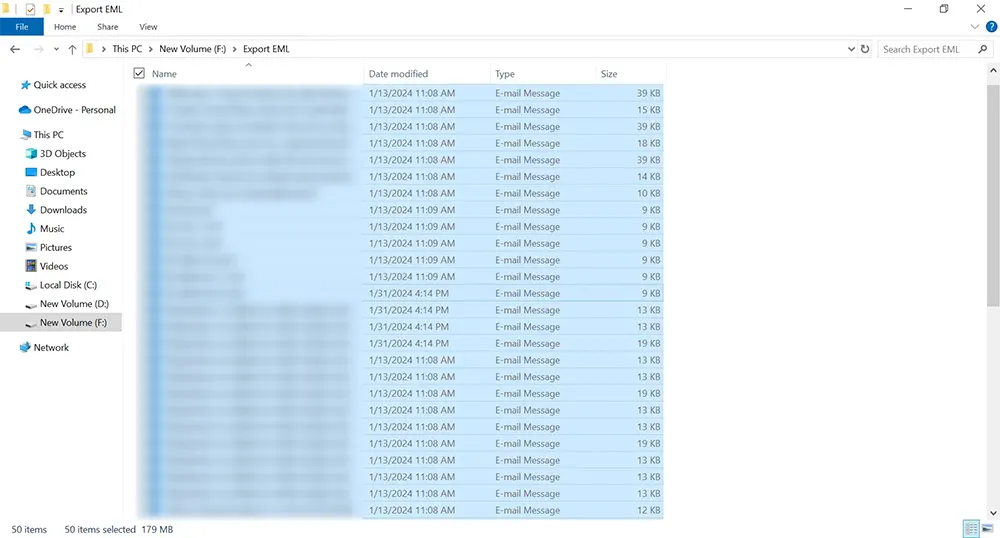
- Wait for Thunderbird to finish importing and indexing the messages.
- Open the imported folder(s) and verify sample messages, attachments, and date ranges.
- Right-click the imported Thunderbird folder and use the ImportExportTools NG export option for folder export in MBOX format (wording can vary slightly by version).
- Choose a local destination folder and run the MBOX export.
- Verify the exported MBOX file(s) by checking file size/date and (optionally) re-importing one exported MBOX file into a test Thunderbird folder.
- Repeat folder-by-folder if you are converting multiple mailbox folders and want tighter validation control.
Important clarity: if you extract the TGZ and already see valid MBOX files, you can skip this manual conversion workflow because the MBOX output already exists.
Important: Thunderbird and add-on menu labels can vary by version. If the import command is missing or disabled, verify add-on compatibility and make sure you are working in a suitable local target (not a restricted account folder context).
Method 3: Convert TGZ to MBOX Directly with SysCurve Zimbra Converter (Controlled Workflow)
For larger TGZ archives, multi-folder migrations, or situations where you want a cleaner export workflow, a direct converter can save time and reduce manual mistakes. The SysCurve Zimbra Converter supports exporting Zimbra TGZ files to MBOX (as well as PST, EML, and MSG).
Important clarity: Microsoft Outlook is required only when you choose PST output. For MBOX output, Outlook is not required.
Workflow (SysCurve method)
- Close Thunderbird and create a backup copy of the original TGZ file.
- Open the SysCurve Zimbra Converter and click Add File.
- Select the Zimbra
.tgzarchive and allow the tool to load/scan the mailbox. - Preview folders and items to confirm the correct TGZ data is loaded.
- Select MBOX as the output format.
- Choose the destination folder using the on-screen path selection option (for example, Browse).
- Click Export to start processing.
- After export, import the resulting MBOX files into Thunderbird (use Method 2 import steps if needed) and validate sample messages before deleting the backup copy.
Use this method when: you need repeatable output, selective export, or a simpler workflow than manual extraction and folder-by-folder import.
How to Choose the Right TGZ to MBOX Method
- Small mailbox, one-time migration, comfortable with manual steps: Method 1 + Method 2.
- Large TGZ archive or multiple users: Method 3 (direct converter workflow) is usually easier to control.
- TGZ already contains valid MBOX files after extraction: no conversion is required. Validate and use the MBOX files directly.
- Need Thunderbird access only: focus on MBOX import and validation; Outlook is not required.
- Need Outlook PST later: use MBOX for review first, then follow a PST conversion workflow (see Zimbra to PST guide or MBOX to PST guide).
The safest sequence is: validate TGZ -> prepare/import one folder -> verify -> continue the rest.
Validation Checklist After TGZ to MBOX Conversion / Import
- Confirm expected folders appear in Thunderbird (or in the exported MBOX set).
- Open sample emails from old and recent date ranges.
- Check attachment-heavy messages (PDF/images/Office files) for readability.
- Run a few searches by sender and subject.
- Compare approximate folder counts with the source mailbox/export expectations.
- Check special folders (Inbox, Sent, custom project folders) individually.
- Keep the original TGZ backup until validation is complete.
Troubleshooting: TGZ to MBOX Conversion Problems
Issue: The TGZ file extracts to a TAR file, not directly to folders
This is normal for many archive tools. A TGZ file is typically a compressed TAR archive, so extract the .tar file in the next step.
Issue: I cannot identify the mailbox files after extraction
Zimbra export structures can vary by version/export scope. Start with a small test import and validate. If the structure is unclear or time is limited, use the direct converter workflow (Method 3).
Issue: ImportExportTools NG will not install or does not show the import command
Confirm add-on compatibility with your Thunderbird version and check the add-on versions/release notes page. Also retry from a Local Folders target context instead of an IMAP-specific folder.
Issue: Imported folder looks incomplete
This is often caused by selecting the wrong file during import, partial extraction, importing only one mailbox file from a multi-folder export, or selecting the wrong parent folder in EML directory import. Recheck the extracted folder set and import folder-by-folder.
Issue: Contacts or calendar items are missing after MBOX import
MBOX is an email mailbox format. Contacts and calendar items usually require separate import handling and are not the same as mail-message MBOX data.
Issue: I see duplicates after repeated testing
Create a fresh test folder in Thunderbird for each import run, or clear the previous test import before repeating. Re-importing the same mailbox into the same destination can create duplicates.
Frequently Asked Questions: Convert TGZ to MBOX
Is a Zimbra TGZ file the same as an MBOX file?
No. TGZ is a compressed archive container. MBOX is a mailbox file format used to store email messages.
Can Thunderbird open a TGZ file directly?
Not as a mailbox file. You should extract the TGZ first, then import the mailbox content into Thunderbird.
Do I need Outlook to convert TGZ to MBOX?
No. Outlook is not required for MBOX output or Thunderbird import. Outlook is only relevant if your final target is PST.
What is the easiest way to move Zimbra mail to Thunderbird?
For many users, the easiest path is Zimbra TGZ export -> extract TGZ -> import mailbox content into Thunderbird with ImportExportTools NG. For larger archives, a direct TGZ-to-MBOX converter workflow is usually simpler.
Will TGZ to MBOX include contacts and calendar?
MBOX is mainly for email messages. Contacts and calendar usually need separate import/export handling outside the MBOX email import workflow.
Does SysCurve require Outlook for TGZ to MBOX?
No. Outlook is required only when exporting TGZ to PST. MBOX export does not require Outlook.
How do I reduce risk when testing the import?
Import one folder (or one mailbox file) first, validate messages and attachments, then continue the rest. Keep the original TGZ untouched until the full migration is verified.
Sources
- Zimbra (Zextras) Admin Guide: Using zcsExport/zcsImport to back up users' mailboxes
- Zimbra Blog: Export and Import Data in Zimbra Web Client
- Zextras Community: How to Import/Export Account Data in Zimbra
- IETF RFC 4155: The application/mbox Media Type
- Thunderbird Add-ons: ImportExportTools NG
- Thunderbird Add-ons: ImportExportTools NG Versions
- Mozilla Support: Unable to install add-ons in Thunderbird - Troubleshoot
- University of Michigan ITS: Import .MBOX Files into Mozilla Thunderbird
- SysCurve Zimbra Converter (TGZ to PST/MBOX/EML/MSG)
Final Word
The most reliable way to convert TGZ to MBOX is to treat the job as a validated mailbox migration, not just a file rename. TGZ is your Zimbra export archive; MBOX is the email format you use in Thunderbird and other clients. For smaller projects, manual extraction plus Thunderbird import works well when you test folder-by-folder. For larger or repeatable jobs, a direct TGZ-to-MBOX converter workflow is usually faster and easier to control.
