Introduction: How to Backup Outlook Emails to a Local Drive (2026)
If you need a reliable Outlook email backup on a local drive, the best method depends on what you are backing up: a full mailbox, a few selected messages, or a review-ready copy for printing or sharing. Many users mix these goals and end up with the wrong output format.
This guide explains the safest local Outlook backup methods for different needs: PST for full mailbox backup, MSG/EML for individual message files (depending on Outlook version/workflow), and PDF for readable records. It also shows when native Outlook steps are enough and when a PST conversion workflow is better for bulk message-level backups.
Authenticity note: This is a method-selection guide, not a workaround list. Outlook has strong native support for PST export, but bulk message-level EML/MSG/PDF workflows are not the same as full mailbox backup and need a different approach.
Scope boundary: This guide covers Outlook desktop backup workflows where Outlook data is stored in PST/OST-backed profiles. For Exchange / Microsoft 365 / IMAP accounts, OST is usually a cache, so the backup goal is to export to PST (not copy the OST). If you use POP accounts, Outlook often already stores mail in a PST file, so direct PST copy may be the fastest local backup path.
Quick answer
- Best full-mailbox backup: export to PST in Classic Outlook and save the file to a local drive.
- Best for selected individual messages: save messages as MSG in Classic Outlook (or EML where supported), or print to PDF for human-readable copies.
- Best for bulk message-level backup: create a PST backup first, then use a PST conversion workflow for structured MBOX/EML/MSG/HTML export.
- Local-drive rule: export to a local folder first, validate the backup, then copy to OneDrive/external/cloud storage if needed.
Related guides:PST file is too large: size limits and safe fixes, How to repair Outlook PST file, Outlook data file cannot be accessed (PST/OST) fix guide.
Choose the Right Backup Format First (PST vs MSG vs EML vs PDF)
Before you start, decide what you actually need from the backup. This avoids repeating exports in multiple formats without a clear reason.
| Format | Best For | Strength | Limitation |
| PST | Full mailbox backup, archive, Outlook restore/migration | Keeps mailbox structure and Outlook items together | Needs Outlook-compatible handling; not as easy to review item-by-item in File Explorer |
| EML | Individual email files, case review, selective sharing | Portable message-level files supported by many tools/clients | Not ideal as a single-file full mailbox backup |
| MSG | Individual Outlook message backups in Classic Outlook workflows | Opens directly in Outlook and preserves Outlook item formatting well | Less universal than EML outside Outlook-focused workflows |
| Readable/printable records of selected emails | Easy to open and share without Outlook | Not a mailbox-native restore format; manual workflow for many emails |
Practical rule: use PST as your primary backup if you may need to restore or reuse the mailbox in Outlook later. Use MSG/EML/PDF only for selective message-level copies, review sets, or evidence packs.
Pre-Backup Checklist (Do This Before Exporting Anything)
- Confirm your goal: full mailbox backup, selected-message backup, or review-ready copies.
- Use a local destination first: avoid exporting directly to a OneDrive-synced folder or network share during active backup/export work.
- Check account type: Exchange / Microsoft 365 / Outlook.com / IMAP often use OST caches; POP often uses PST directly.
- Check mailbox synchronization state: for Cached Exchange Mode mailboxes, Outlook may not have the full mailbox cached yet.
- Close other backup tools or scripts that may lock Outlook data files.
- Create a validation checklist: folder counts, sample messages, attachments, date ranges, and search checks.
Method Comparison: Which Backup Method Should You Use?
| Method | Best For | Type | Risk |
| Copy existing PST file | POP/local archive PST already exists | Native file copy | Low (if Outlook is closed) |
| Export mailbox to PST | Full mailbox backup from active Outlook profile | Native Outlook export | Low |
| Save message as MSG (or EML where supported) | Selected message backups | Native message-level save | Low (manual/time-consuming) |
| Print to PDF | Readable records of selected emails | Native print workflow | Low (manual/time-consuming) |
| PST to MBOX/EML/MSG/HTML conversion | Bulk message-level local copies from a PST backup | Tool-based export | Low/Medium |
Method 1: Copy an Existing PST File to a Local Drive (Fastest for POP / Archive PSTs)
If Outlook already stores the mailbox you need in a PST file (common with POP accounts and local archive PSTs), a direct file copy is often the fastest backup to local drive.
Important: copy the PST only when Outlook is closed. Copying an actively used PST can produce an inconsistent backup.
Procedure (direct PST copy)
- Close Outlook completely.
- Open Task Manager and confirm
OUTLOOK.EXEis not still running in the background. - Open Classic Outlook (if needed beforehand) and note the PST path from File > Account Settings > Account Settings > Data Files.
- Go to the PST location in File Explorer and copy the PST file to a local backup folder (example:
D:\\Outlook-Backups\\). - Record the file name, size, and backup date.
- Optionally open the copied PST in Outlook later to validate it (see Validation Checklist After Backing Up Outlook Emails below).
If you are not sure whether the file is OST or PST: check the file extension and Outlook Data Files list before copying. The backup/recovery path differs for OST vs PST. See OST vs PST in Outlook.
- Open File > Account Settings > Account Settings and review the data files list.

Method 2: Export Outlook Emails to PST (Best Full-Mailbox Backup to Local Drive)
This is the standard and most reliable Outlook-native method when you need a full mailbox backup or a portable Outlook archive file.
Important: The step-by-step wizard below is for Classic Outlook for Windows (Import/Export wizard).
Current Microsoft note: Microsoft documents PST export and PST file access in New Outlook, but PST support is still limited for some scenarios, so Classic Outlook remains the safest option for full mailbox backup workflows.
Procedure (Classic Outlook export to PST)
- Open Classic Outlook and confirm the mailbox/profile loads successfully.
- If this is an Exchange/Microsoft 365 account using Cached Exchange Mode, Outlook may only have part of the mailbox cached (often 12 months by default). Set Mail to keep offline to All and let sync finish before exporting. If older mail is still missing, Microsoft also recommends disabling Cached Exchange Mode in some setups before export to ensure the full mailbox is included.
- Go to File > Open & Export > Import/Export.

- Select Export to a file and click Next.

- Choose Outlook Data File (.pst).
- Select the mailbox or folders you want to back up and enable Include subfolders if needed.

- Choose a local destination path and file name for the backup PST.

- Start the export and wait for completion.
- Open the exported PST and validate sample folders/messages before deleting or moving any source data.
OneDrive warning: Microsoft explicitly warns against exporting the PST directly to a OneDrive-synced folder. Export to a local folder first, validate the PST, and then copy it to OneDrive or another backup destination.
When this method is best: mailbox backup, local archive, migration prep, and long-term Outlook-compatible retention.
Method 3: Save Selected Outlook Emails as MSG (or EML Where Supported)
Use this method when you need individual email files instead of a full mailbox backup. This is useful for selective evidence packs, handoff, or reviewing a small set of messages outside Outlook.
Important authenticity detail: Microsoft currently documents straightforward .eml Save As behavior in Outlook on the web (and related supported Outlook experiences), while Classic Outlook commonly defaults to Outlook message formats (such as .msg / Unicode Outlook message), with exact Save As options varying by build/workflow. For large or repeatable EML exports, use Method 5 (PST conversion workflow).
Procedure (message-level save as MSG or EML)
- Open the email message you want to back up.
- Use the Outlook Save As message option (menu labels vary in New Outlook vs Classic Outlook).
- In Classic Outlook, the default Save As type is typically an Outlook message format (commonly .msg / Unicode Outlook message). Save to a local folder if MSG meets your backup goal.
- If your Outlook version/workflow offers .eml, choose it and save to a local folder. (Microsoft documents .eml save in current Save As guidance for supported Outlook experiences.)
- Repeat for each message you need to save as an individual file.
- Open a sample exported file (MSG or EML) to confirm headers, body, and attachments are readable.
Practical limitation: this is a manual method for selected messages. It is not efficient for large mailboxes or bulk exports.
If your Outlook build does not offer EML consistently (or you need many message files): create a PST backup first (Method 2), then use Method 5 to export MBOX/EML/MSG/HTML in bulk.
Method 4: Save Outlook Emails as PDF to a Local Drive (Readable Record Copies)
PDF is useful when you need a human-readable backup copy of important messages, approvals, or case records. It is not a mailbox restore format, so use it as a companion to PST, not a replacement for full backup.
Procedure (print to PDF)
- Open the email message in Outlook.
- Open the Print option for the message.
- Select Microsoft Print to PDF (or another PDF printer installed on your system).
- Review print settings and page range if needed.
- Click Print, choose a local destination folder, and save the PDF.
- Open the saved PDF to confirm readability and attachment references (attachments are typically not embedded as separate original files in a print-to-PDF output).
When to use PDF backup: legal review packets, project approvals, HR documentation, or quick local copies of key emails.
When not to use PDF as the only backup: full mailbox backup, Outlook restore, folder-preserving archive, or migration scenarios.
Method 5: Bulk Export a PST Backup to MBOX/EML/MSG/HTML (Structured Local Message Backup)
If you need many emails as local files (for example EML/MSG for review or MBOX for another client/archive workflow), use a two-step workflow: create a PST backup first (Method 2), then convert the PST into the required message format.
Positioning note: Use this as a secondary structured message export set after creating your primary PST backup.
The SysCurve PST File Converter is designed for this workflow and supports PST export to MBOX, EML, MSG, HTML, and other formats with preview and selective folder export.
Tool requirement note: Outlook must be installed to process PST files with this tool. Also, the PST should be healthy; if the PST is corrupted, repair it first (see How to repair Outlook PST file).
Workflow (SysCurve PST File Converter)
- Create or identify a healthy PST backup first (Method 1 or Method 2), then close Outlook.
- Open the SysCurve PST File Converter and click Add File.
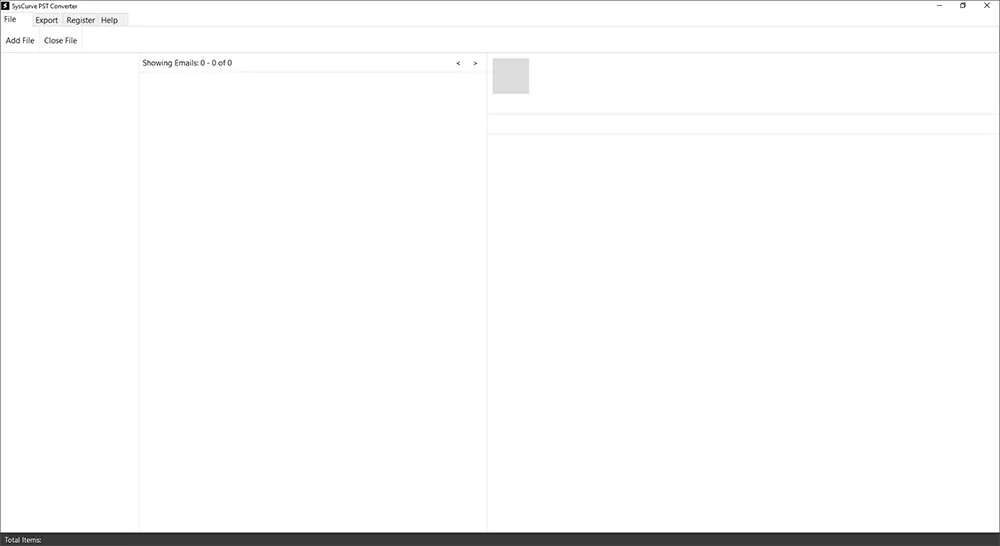
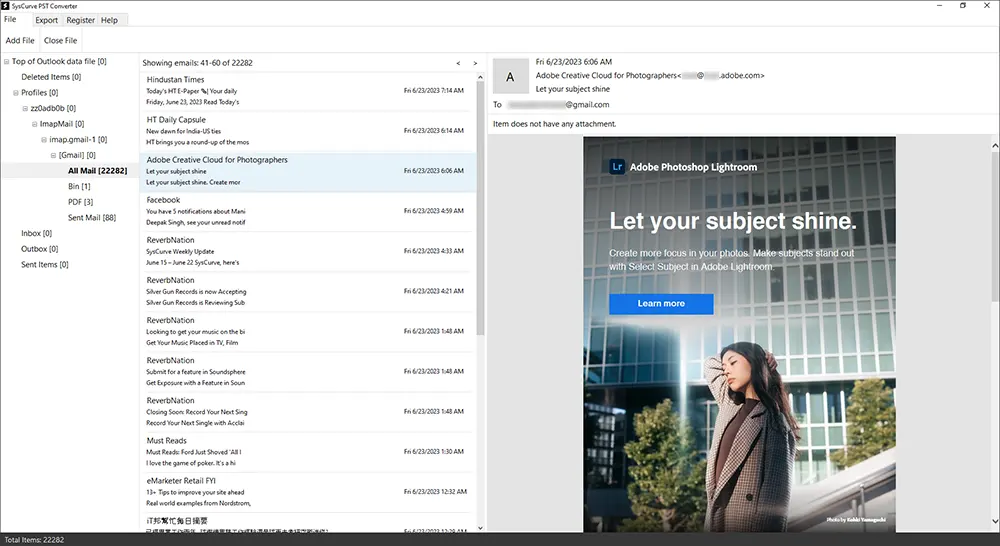
- Select the PST file you want to back up into message-level files and let the tool load the mailbox.

- Preview folders and messages, then choose the folders you want to export.
- Click Export and choose the target format (for example MBOX, EML, MSG, or HTML).
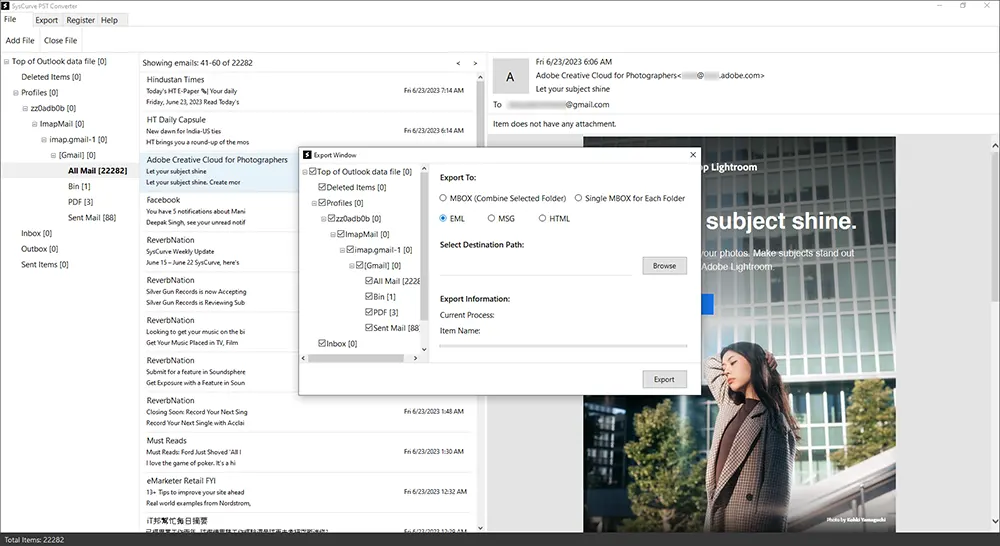
- Select the destination path on your local drive.

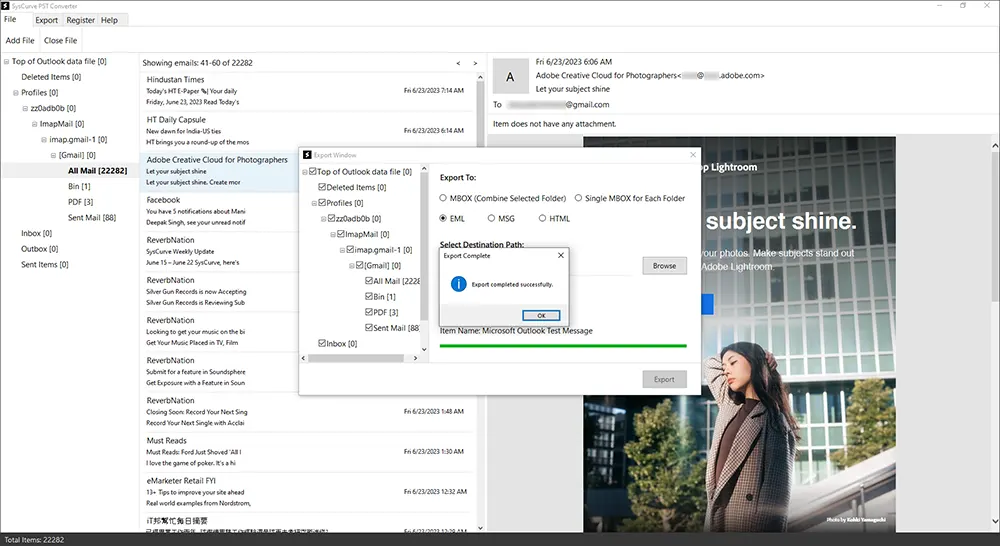
- Click Export to start processing and wait for completion.

- Review the completion status and open sample exported files to validate results.
Why this method is useful: native Outlook PST export is best for full-mailbox backup, but it does not produce bulk MBOX/EML/MSG files in one step. This workflow gives you a structured local message-level backup set after the PST is created.
Local Backup Hygiene: Where to Store the Files After Export
Creating the backup is only half the job. A local backup that cannot be found, opened, or validated later is not a reliable backup.
- Use a clear folder structure: example
D:\\Outlook-Backups\\UserName\\2026-02-24\\PST\\,...\\EML\\/...\\MSG\\/...\\MBOX\\,...\\PDF\\. - Use consistent file naming: include mailbox name, date, and format.
- Keep the source PST until validation is complete: do not delete or overwrite immediately after export.
- Copy to second storage after validation: external drive, backup server, or cloud storage (after local export is complete and verified).
- Avoid active PST work on OneDrive/network shares: use local storage during export/repair/split workflows.
Validation Checklist After Backing Up Outlook Emails
- PST backup file exists at the expected local path and has a reasonable file size.
- The PST opens in Outlook without errors (if you created a PST backup).
- Folder hierarchy matches your selected scope (Inbox, Sent Items, custom folders, subfolders).
- Sample emails open from old, mid, and recent date ranges.
- Attachments open correctly from sample messages.
- If you created EML/MSG/MBOX files, a sample set opens correctly in your target viewer/client.
- If you created PDFs, the text is readable and the correct messages were saved.
- Backup location and date are documented.
Common Mistakes to Avoid
- Exporting to a OneDrive-synced folder directly: export locally first, then copy after validation.
- Skipping sync checks for Exchange/Microsoft 365: the export may miss older mail if Outlook has not cached it locally.
- Using PDF as the only backup for a full mailbox: PDF is readable, not restore-friendly.
- Assuming MSG/EML/PDF replaces PST: they serve different backup goals.
- Converting a damaged PST before repair: stabilize the PST first if Outlook reports errors.
Frequently Asked Questions
What is the best way to back up Outlook emails to a local drive?
For a full mailbox backup, export to a PST file in Classic Outlook and save it to a local folder. Validate the PST before copying it to cloud or external storage.
Can I back up Outlook emails as EML files?
Yes, but EML is best for selected messages or a bulk export workflow from a PST backup. In Classic Outlook, message-level Save As often produces MSG by default, while EML availability depends on version/workflow. EML is not the best single-file full-mailbox backup format.
Can I use PDF as my Outlook email backup?
PDF is useful for readable copies of selected messages, but it is not a restore-ready mailbox format. Use PST for full backup and PDF for records/review copies.
Why are older emails missing from my PST export?
If you use Exchange/Microsoft 365 with Cached Exchange Mode, Outlook may not have the full mailbox cached locally. Set Mail to keep offline to All, let sync finish, and then export again. If older mail is still missing, turn off Cached Exchange Mode temporarily (as Microsoft recommends for full export in some cases), then export again.
Can I export the PST directly to OneDrive?
Microsoft recommends exporting to a local folder first and then moving/copying the PST to OneDrive. This reduces file lock and sync issues during export.
Do I need Outlook installed for the SysCurve PST File Converter?
Yes. The product requirements note that Outlook must be installed to process PST files.
Sources
- Microsoft Support: Export emails, contacts, and calendar items to Outlook using a .pst file
- Microsoft Support: Open and close Outlook Data Files (.pst)
- Microsoft Support: Open and find items in an Outlook Data File (.pst)
- Microsoft Support: Change how much mail to keep offline
- Microsoft Support: Turn on Cached Exchange Mode
- Microsoft Support: Save an Outlook message as a .eml file, a PDF file, or as a draft
- Microsoft Support: Print a page or part of an email message
- Microsoft Support: How to remove an Outlook .pst data file from OneDrive
- Microsoft Support: Feature comparison between new Outlook and classic Outlook
- SysCurve PST File Converter
Final Word
The most reliable way to back up Outlook emails to a local drive is to make PST your primary backup format for full mailbox protection, then add MSG/EML/PDF only when you need message-level copies. That approach keeps the backup usable for Outlook recovery while still giving you portable files for review, sharing, or documentation.
