Introduction: PST File Is Too Large - Size Limits and Safe Fixes (2026)
A PST file that is too large usually causes one of three problems: Outlook slows down, backup/export operations become unreliable, or the PST gets close enough to file-size limits that corruption risk and repair incidents become more likely. Many users try random fixes first, but the safest approach is to identify the actual size/limit context and then use the right reduction method.
This guide explains the real Outlook PST size limits (legacy and modern), how to reduce an oversized PST safely, when Outlook-native archive/export methods are enough, and when a direct split workflow is the better option. It also includes a repair path if the PST already shows errors after size-related issues.
Authenticity note: Most maintenance steps in this guide are for Classic Outlook for Windows because PST data-file management, compaction, and archive workflows are not identical in new Outlook.
Quick answer
- Modern Unicode PST files (Outlook 2010 and later) use a default size limit of 50 GB; Outlook 2003/2007 Unicode PST defaults are 20 GB; legacy ANSI PST files are much smaller and high-risk near ~2 GB.
- Safest fix order: remove/offload data -> compact the PST -> validate Outlook behavior -> split only if ongoing size control is still needed.
- Archive/export methods are valid for offloading data, but they are not exact size-based split engines.
- If the PST shows corruption errors (can't open, repair prompts), repair first. If it opens normally and the issue is size/performance, offload/compact first.
Scope note: This guide focuses on PST size limits and safe fixes for Outlook data files. OST cache issues follow a different troubleshooting path.
Related guides:How to Split PST File, How to Repair Outlook PST File, Outlook data file cannot be accessed (PST/OST) fix guide.
What “PST File Is Too Large” Really Means
“Too large” does not always mean the file has already hit the hard limit. In practice, users use this phrase for several situations:
- Near-limit risk: the PST is approaching Outlook's warning or maximum size threshold.
- Performance pain: Outlook search, startup, or folder operations become slow because the PST is oversized or poorly maintained.
- Disk-size confusion: users deleted old mail, but the PST file size on disk did not shrink because Outlook has not compacted the file yet.
- Post-limit damage symptoms: Outlook reports errors and the PST needs repair before normal use.
That is why the best fix depends on the exact symptom, not only the raw file size number.
Outlook PST Size Limits (What Microsoft Documents)
Microsoft documents different PST/OST size limits depending on file format generation and Outlook version. For PST maintenance, the most important distinction is legacy ANSI PST vs Unicode PST.
| PST Type / Outlook Generation | Default Max Size | Practical Note |
| ANSI PST (older legacy format) | About 2 GB class limit | High risk near limit; corruption incidents were common in legacy oversized PST scenarios |
| Unicode PST (Outlook 2003 / 2007) | 20 GB default | Microsoft documents WarnLargeFileSize / WarnFileSize thresholds below max, but they are not a user-facing warning prompt |
| Unicode PST (Outlook 2010 and later, including many Microsoft 365 Classic Outlook installs) | 50 GB default | Microsoft documents warning and max registry values, but increasing limits is not a first-line fix |
Advanced admin note (not a first-line fix): Microsoft documents registry values such as WarnLargeFileSize and MaxLargeFileSize for Unicode PST/OST files. These values control thresholds but do not create a user-facing warning popup. This guide treats registry changes as an admin-only last resort because increasing limits can worsen performance and does not fix poor mailbox hygiene or corruption.
Classic Outlook vs New Outlook (Why This Matters for PST Fixes)
This article uses Classic Outlook for Windows for most methods because:
- Data file settings (including compaction paths) are part of the classic Outlook workflow.
- Archive/AutoArchive behavior differs, and Microsoft documents some features as unavailable in new Outlook.
- .pst support in new Outlook is only partially available according to Microsoft's feature comparison documentation.
More specific Microsoft-documented limitation: new Outlook can work with some .pst access/search and drag-and-drop scenarios, and Microsoft now documents .pst export in supported builds. But Microsoft also documents limitations: importing mailbox or calendar data from a .pst into a mailbox is not supported in new Outlook, and calendar/contacts items stored in .pst are not available there.
Practical rule: use Classic Outlook for PST maintenance, archiving, compaction, and repair workflows. Use new Outlook only after the PST problem is stabilized.
Method Comparison: Safe Fixes for an Oversized PST
| Method | Best For | Type | Risk | Effort |
| Cleanup + compact | PST is large but still healthy; users deleted data and want disk size reduction | Native maintenance | Low | Low/Medium |
| Archive older items to a new PST | Date-based mailbox offload and long-term archive segmentation | Native redistribution | Low/Medium | Medium |
| Export selected folders to a new PST | Project/folder-based offload with manual control | Native redistribution | Medium | Medium/High |
| Direct PST split tool | Exact size/date/folder/email-ID split requirements, repeatable admin jobs | Direct split | Low/Medium | Low/Medium |
| PST repair (SCANPST / repair workflow) | Oversized PST already shows corruption/error symptoms | Recovery path | Medium | Medium |
Recommended sequence: identify file/limit -> cleanup/offload -> compact -> validate -> split if needed for ongoing size control -> repair path if errors exist.
Pre-Fix Checklist (Do This Before Any Size Reduction)
- Back up the PST file: make a copy before cleanup, archive moves, exports, or split operations.
- Confirm it is a PST: users often mix up PST and OST. The safe fix path is different.
- Work in Classic Outlook: most PST maintenance steps below use classic Outlook UI paths.
- Use a local drive for active PST repair/split/export work: avoid OneDrive-synced destinations during export, and avoid network-share PST workflows.
- Define your goal: shrink disk size, reduce active mailbox load, split for backup limits, or repair a failing PST.
- Create a validation checklist: folder counts, sample messages, attachments, and search checks.
This prevents the most common failure mode: running multiple fixes without a clear target and then not knowing what changed.
Method 1: Identify the PST and Measure the Real Problem (Checklist)
Before fixing anything, confirm whether you are dealing with a file-limit issue, a white-space/compaction issue, or a corruption issue.
Procedure
- Open Classic Outlook.
- Go to File > Account Settings > Account Settings.
- Open the Data Files tab and identify the active
.pstfile. - Use Open File Location (if available) or note the path and check the file size in File Explorer.
- (Optional but recommended) Use File > Tools > Mailbox Cleanup to identify large folders and oversized messages before choosing archive, export, or split.
- Decide which symptom is primary:
- Near size limit / very large file
- Disk size not shrinking after cleanup
- PST errors / repair prompts / inaccessible file behavior
- If Outlook already reports PST errors, keep Method 6 (repair path) in scope while you plan size reduction.
Why this matters: deleting mail alone does not always shrink the PST on disk. Outlook compaction is a separate step.
Method 2: Reduce Mailbox Content and Compact the PST (Safe First Fix)
This is the safest first-line fix when the PST still opens normally. Microsoft documents that compaction reduces empty space in data files, but it can take time and works best after enough data has been removed or moved out.
Procedure (cleanup + compact)
- In Outlook, review large folders (Inbox, Sent Items, custom project folders) and remove or move old data you no longer need in the active PST.
- Move older mail to an archive PST (Method 3) or export selected folders to a new PST (Method 4) instead of deleting everything permanently if retention matters.
- Empty Deleted Items after confirming you do not need the removed items.
- Open File > Account Settings > Account Settings > Data Files and select the target PST.

- Open the PST settings path (for many setups: Settings / Outlook Data File Settings) and click Compact Now.
- Wait for compaction to complete. Do not force-close Outlook during this process.
- Recheck the PST size on disk and validate Outlook responsiveness.
Important authenticity detail: Microsoft notes compaction is most effective when the file has a meaningful amount of empty space (their guidance references roughly 20% or more). If the PST did not shrink much, you may need more offload/cleanup first.
Method 3: Archive Older Items to a New PST (Date-Based Safe Offload)
Archive is a valid Outlook-native method when the PST is too large because of older mail. It is not an exact size-split engine, but it is a safe date-based offload workflow.
Important: This method uses manual archive to a .pst file (Clean Up Old Items), not the ribbon Archive button. The ribbon Archive button is not the same as manual archive to a new .pst. It usually moves items to an Archive folder (often inside the same mailbox), so it does not create a separate archive PST for size-control.
Procedure (Classic Outlook archive)
- Open Classic Outlook.
- Go to File > Info > Tools > Clean Up Old Items (wording may vary slightly by Outlook build).
- Select Archive this folder and all subfolders.
- Select the mailbox/folder scope to archive.
- Set the cutoff date in Archive items older than.
- Choose a destination path and file name for the archive PST.
- Run the archive and wait for completion.
- Open the archive PST and validate the moved message scope before deleting anything else.
Policy note: Microsoft documents that Archive/AutoArchive options may be unavailable or restricted in some Exchange/Microsoft 365 account profiles depending on organization policy and profile type.
Method 4: Export Selected Folders to a New PST (Folder-Based Offload)
Use this method when you want controlled folder-by-folder offload (for example, projects, year folders, or departments). This is an Outlook-native redistribution workflow, not a true automated split engine.
Procedure (Classic Outlook export to PST)
- Open Classic Outlook.
- Go to File > Open & Export > Import/Export.

- Select Export to a file.

- Choose Outlook Data File (.pst).
- Select the folder scope to offload and enable Include subfolders if needed.

- Choose a local destination path and file name for the new PST.

- Run export and wait for completion.
- Open the exported PST and validate folders/messages before removing data from the source PST.
Export authenticity note: If you use this method as an offload strategy, validate the exported PST first, then return to Method 2 and compact the original PST if you removed/moved data from it.
Method 5: Split the PST Directly by Size/Date/Folder (Exact Split Workflow)
If your requirement is exact split control (for example, 2 GB chunks, year-based files, or folder-based outputs in one run), use a direct split workflow. The SysCurve PST Split Tool is built for this type of operation.
Workflow (SysCurve PST Split Tool)
- Back up the original PST file.
- Open the SysCurve PST Split Tool and click Add File.
- Select the source PST file you want to split.
- Choose the splitting criteria:
- By size (for exact file-size based chunking)
- By date
- By folder
- By email ID
- Set the required split settings (for example, target size threshold if splitting by size).
- Choose the destination folder and click Save (as shown in the product working guide).
- Click Split to start processing.
- Open the generated PST files in Outlook and validate sample folders/messages before handoff.
Why this method is authentic for size-based splitting: Outlook-native archive/export can redistribute data, but they do not provide exact automated split-by-size behavior in one run.
Method 6: If the PST Shows Errors After Size Problems (Repair Path)
If the PST is large and Outlook now reports errors, use a repair workflow. Size reduction alone does not fix PST corruption.
Procedure (SCANPST first, PST repair workflow if needed)
- Close Outlook completely.
- Locate and launch SCANPST.exe (Microsoft Inbox Repair Tool).

- Browse to the affected PST file.
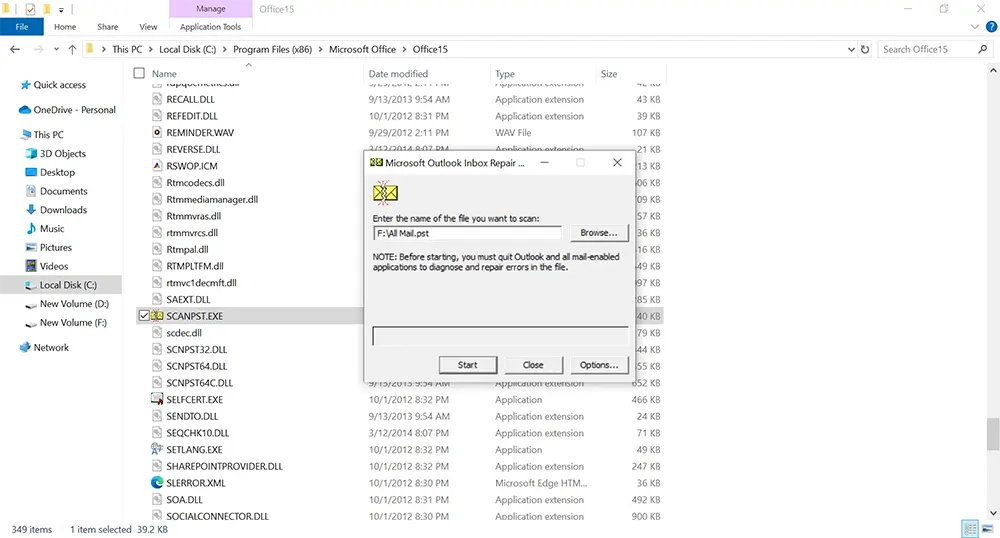
- Run the scan and review the result.

- Enable backup before repair and run the repair.
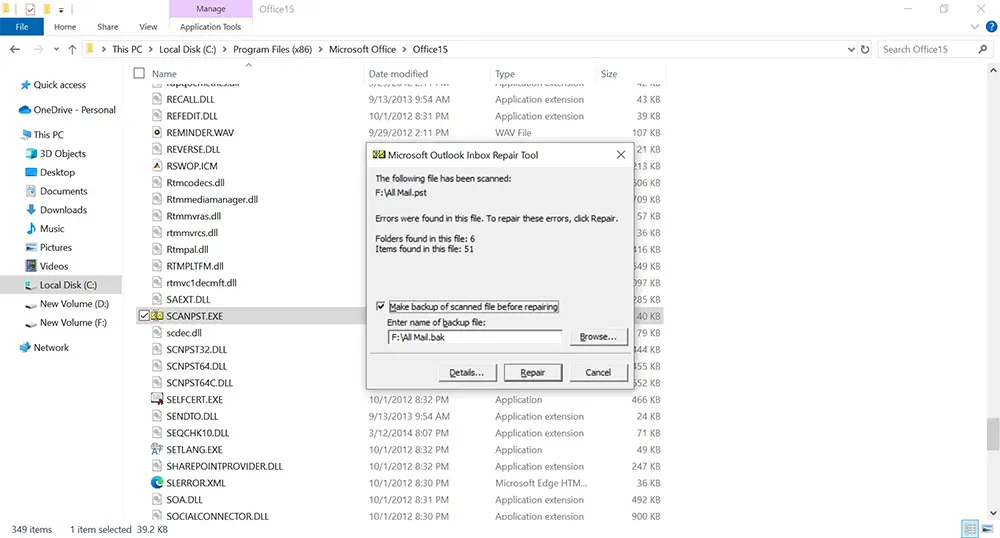
- Repeat scan/repair if needed until errors stop appearing, then reopen Outlook and validate the PST.
- If SCANPST cannot stabilize the PST, use a dedicated PST repair workflow (for example, SysCurve Outlook PST Repair Tool) before splitting/offloading.
Important: If Outlook can't open the PST or shows repair prompts, repair first. If the PST opens normally and the issue is only size/performance, offload/compact first and use the repair path only if errors appear. Splitting a broken PST can produce incomplete or inconsistent outputs.
What Not to Do (High-Risk Shortcuts)
- Do not increase registry size limits as your first fix: Microsoft documents these settings, but larger limits do not solve cleanup/maintenance problems and can worsen performance.
- Do not assume deletion immediately shrinks the PST file on disk: compaction is a separate step.
- Do not delete the source PST too early: keep it until validation is complete.
- Do not run overlapping archive/export jobs into the same destination folder without naming rules: this creates duplicate confusion.
- Do not force-close Outlook during compaction, export, or repair: interrupted operations create avoidable recovery work.
Validation Checklist After Fixing a Large PST
- The source PST (or split outputs) opens in Outlook without errors.
- Folder hierarchy matches your plan.
- Random messages open from old, mid, and recent date ranges.
- Attachment-heavy emails open correctly.
- Search works on a few known senders/subjects.
- If you offloaded data, the source PST is smaller or Outlook performance improved after compaction.
- Source backup is retained until business sign-off.
Frequently Asked Questions: PST File Is Too Large
What is the PST size limit in modern Outlook?
Microsoft documents a default 50 GB limit for Unicode PST/OST files in Outlook 2010 and later, with a warning threshold below that. Older Unicode PST defaults (Outlook 2003/2007) are 20 GB.
Why didn't my PST file size shrink after deleting emails?
Because deleted items create empty space inside the PST. Outlook usually needs a compaction step (Compact Now) to reclaim that space on disk.
Is Archive the same as splitting a PST?
No. Archive is a valid date-based offload method, but it is not the same as an exact split-by-size engine.
What is the safest fix if my PST is too large but still opens?
Use the safe order: offload data (archive/export or direct split) -> compact the PST -> validate Outlook behavior.
Can I just raise the PST limit in Registry Editor?
Microsoft documents registry limit values, but this is not a first-line fix. It does not repair corruption or improve mailbox organization, and larger files can still hurt performance.
Do these methods work in new Outlook?
Most maintenance paths in this article are for Classic Outlook for Windows. Microsoft documents partial .pst support in new Outlook: some .pst access/search and export scenarios are supported in current builds, but importing a mailbox/calendar from a .pst is not supported there, and calendar/contacts stored in .pst are not available in new Outlook.
Do I need Outlook installed for SysCurve PST Split Tool?
Yes. The SysCurve PST Split Tool product requirements list Microsoft Outlook support (Outlook 2010 or later) for PST processing. Outlook-native archive/export/repair methods also require Outlook.
Sources
- Microsoft Learn: The .pst and .ost files have a size limit of 50 GB in Outlook
- Microsoft Support: Reduce the size of your mailbox and Outlook Data Files (.pst and .ost)
- Microsoft Support: Archive in Outlook for Windows
- Microsoft Support: Archive items manually
- Microsoft Support: Export emails, contacts, and calendar items to Outlook using a .pst file
- Microsoft Support: Open and close Outlook Data Files (.pst)
- Microsoft Support: Overview of Outlook data files (.pst and .ost)
- Microsoft Support: How to remove an Outlook .pst data file from OneDrive
- Microsoft Support: Repair Outlook data files (.pst and .ost)
- Microsoft Support: Feature comparison between new Outlook and classic Outlook
- SysCurve PST Split Tool
- SysCurve Split PST Tool Working Guide
Final Word
The safest way to fix a PST file that is too large is to separate the problem into two parts: size control and file health. Use cleanup, archive/export, or a direct split workflow to reduce size pressure, then compact and validate. If the PST already shows errors, run a repair workflow before you trust any split or offload result. That sequence is slower than random trial-and-error, but it prevents data loss and rework.
