Introduction: Outlook Data File Cannot Be Accessed (PST/OST) Fix Guide (2026)
The error Outlook data file cannot be accessed usually means Outlook cannot read, load, or write to the mailbox file it expects to use. That file might be a PST (portable Outlook data file) or an OST (offline cache file). The correct fix depends on which type you are dealing with. Using the wrong fix often wastes hours.
This guide gives you a practical, step-by-step way to diagnose the error and fix it safely. It covers local path problems, OneDrive and non-local drive issues, Safe Mode testing, Outlook profile reset, OST recreation for server-backed accounts, PST repair with SCANPST, and when to use a recovery tool instead of repeating failed manual steps.
Important: These data-file and profile steps are for Classic Outlook for Windows. New Outlook has different PST/OST behavior and does not use the same data-file management workflow for many tasks.
Quick answer
- If the file is an OST (Exchange/Microsoft 365/Outlook.com/IMAP cache): verify account health, then recreate the OST or create a new Outlook profile.
- If the file is a PST: confirm the file is on a local drive (not unsupported network/removable path), remove OneDrive conflicts, then repair with SCANPST if needed.
- If Outlook still cannot access the file: identify whether the problem is profile corruption, file corruption, or unsupported file location before trying more fixes.
- Before any repair action: create a backup copy of the PST/OST file and document the exact error wording.
Related guides:How to open Outlook in Safe Mode, How to repair Outlook PST file, How to fix OST data files, OST vs PST guide.
What This Error Usually Means (PST vs OST)
Outlook stores data in different file types depending on account type and workflow. The error can appear in more than one scenario, but the fix path is different.
| File Type | Typical Use | Common Fix Direction |
| OST file | Offline cache for Exchange / Microsoft 365 / Outlook.com / many IMAP setups | Account check, profile repair, recreate OST cache |
| PST file | Local archive/export/backup data file | Path/permission check, move to local storage, SCANPST repair |
Key rule: server-backed OST issues are usually fixed by rebuilding cache/profile, while PST issues often require path correction or PST repair steps.
Common Causes of “Outlook Data File Cannot Be Accessed”
- Unsupported file location: PST/OST is on a network share, removable drive, or non-local path Outlook does not support.
- OneDrive sync conflicts: PST is in a OneDrive-synced folder and gets locked or delayed by sync activity.
- Profile corruption: Outlook profile settings point to a wrong or inaccessible data file.
- PST corruption: Outlook can see the file path but fails to read the file structure.
- OST cache inconsistency: local cache issue while the mailbox itself is still healthy on the server.
- Add-in conflict: add-ins prevent Outlook from loading the profile or mailbox correctly.
- Permission / file lock issue: another process or security tool is holding the file.
Fixing the wrong cause first can make the issue harder to diagnose. Start with identification, then follow the methods below in order.
Pre-Fix Checklist (Do This Before Any Repair)
- Write down the exact error message: include where it appears (startup, send/receive, opening a PST, changing default data file).
- Identify whether the file is PST or OST: check the Data Files tab in Outlook if Outlook opens at all.
- Close Outlook fully: confirm no background Outlook process is still running.
- Create a backup copy: copy the affected PST/OST before rename, repair, or profile changes.
- Check account availability: if this is a server-backed mailbox, confirm webmail access before touching OST files.
- Work from local storage: avoid repairing or opening data files from cloud-synced or external paths.
This short checklist reduces accidental data loss and helps you rollback if a later step does not solve the problem.
Method 1: Identify the Data File and Confirm Its Location (Checklist)
This is the fastest way to separate a path/location issue from file corruption.
Procedure
- Open Classic Outlook if it still launches.
- Go to File > Account Settings > Account Settings.
- Open the Data Files tab and note the file name and extension (
.pstor.ost).
- Select the file and click Open File Location (if available) to verify the actual path.
- Check whether the file is stored on a local drive (recommended) or in a OneDrive, network, removable, or redirected location.
- If Outlook will not open, use File Explorer and Windows search to locate likely
.pstor.ostfiles, then compare names with the error path if shown.
Important authenticity point: Microsoft documents that adding Outlook data files from some non-local locations is unsupported and can trigger access-related errors. If the file is not local, fix the location first.
Method 2: Open Outlook in Safe Mode to Isolate Add-ins (Diagnostic Procedure)
Safe Mode is a diagnostic method, not a final fix. It helps confirm whether add-ins or custom startup components are blocking Outlook from loading the profile/data file correctly.
Safe Mode steps
- Close Outlook completely.
- Press Windows + R to open the Run dialog.
- Type
outlook.exe /safeand press Enter. - If Outlook opens, choose the affected profile and check whether the mailbox/data file loads.
- If Safe Mode works, go to File > Options > Add-ins, disable non-essential COM add-ins, then test normal startup again.
- Re-enable add-ins one at a time only after Outlook becomes stable.
Need a detailed walkthrough? See how to open Outlook in Safe Mode.
Method 3: Fix Unsupported Path / OneDrive / File Lock Problems (PST-Focused)
If the error occurs while opening or adding a PST file, file location is a high-probability cause. Microsoft documents issues with PST files in OneDrive and unsupported non-local locations.
Procedure (move PST to a stable local path)
- Close Outlook fully.
- If the PST is in a OneDrive-synced folder, wait for sync to settle, then copy the PST to a local folder such as
C:\Users\<User>\Documents\Outlook Files. - Do not move the only original file first; copy it, then work with the local copy.
- Open Outlook and remove the old inaccessible PST reference if needed (only after confirming the local copy is available).
- Use File > Open & Export > Open Outlook Data File (or the Data Files tab) to attach the local PST copy.

- Validate that folders open normally and the error does not return.
Local-path rule: if the file is on a network share, removable media, or another unsupported non-local path, copy it to a local drive before retrying.
Method 4: Recreate the OST Cache (Best for Active Exchange/Microsoft 365/Outlook.com/IMAP Accounts)
If the inaccessible file is an OST and the mailbox still exists on the server, recreating the OST cache is usually the correct first-line fix. This is not a workaround; it is standard Outlook cache recovery practice for server-backed accounts.
OST rebuild workflow
- Confirm the mailbox is accessible in webmail (Outlook on the web, Outlook.com, or your provider webmail) before proceeding.
- Close Outlook completely.
- If Outlook can still open, note the OST path from File > Account Settings > Account Settings > Data Files.

- Open the OST location in File Explorer and copy the OST to a backup folder.
- Rename the original OST file (for example,
mailbox.osttomailbox.ost.old) instead of deleting it immediately.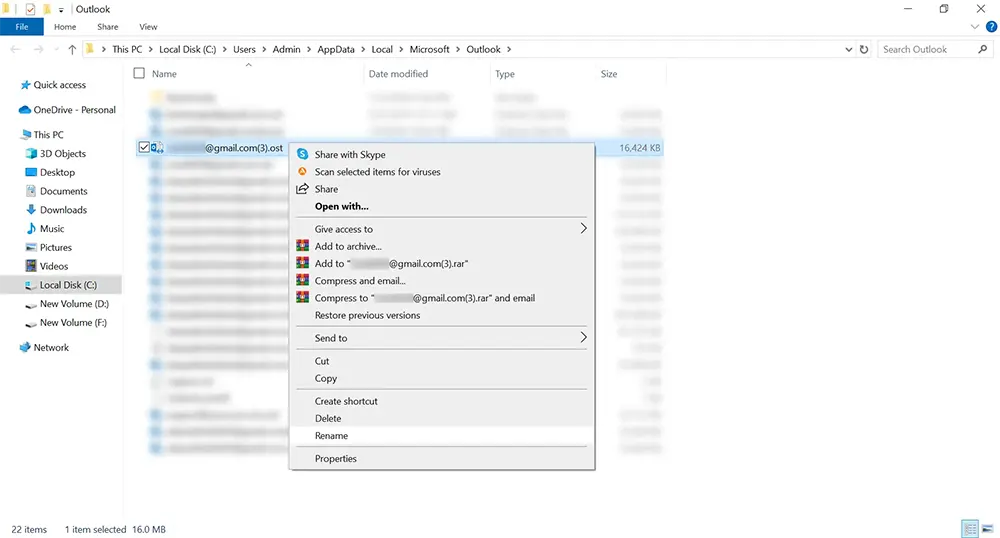
- Open Outlook and allow it to create a new OST file and re-synchronize the mailbox.

- Wait for sync to finish, then test folder access, search, and recent mail.
Caution: if you recently worked offline or see pending sync problems, confirm important changes have already synchronized to the server before recreating the OST.
Method 5: Create a New Outlook Profile (Profile Reset Procedure)
A damaged Outlook profile can point to the wrong file path or fail to load the correct PST/OST even when the file itself is healthy. For current Outlook guidance, start with the Profile Picker route.
Primary method (recommended): Profile Picker
- Close Outlook completely.
- Open Outlook while holding Shift to bring up the Profile Picker window (or run
outlook.exe /profiles). - Create a new profile and sign in to the affected account.
- Let Outlook build the new profile and data file configuration.
- Test whether Outlook opens without the “data file cannot be accessed” error.
- If you need to switch profiles from an active session later, use File > Account Settings > Change Profile.
Alternative method: Control Panel > Mail
- Close Outlook.
- Open Control Panel and search for Mail (Mail (Microsoft Outlook)).
- Click Show Profiles, then click Add.
- Create a new profile and test with Prompt for a profile to be used enabled.
Modern-auth note: Microsoft notes the Control Panel Mail applet is not the best path for adding some modern-auth accounts (Microsoft 365, Outlook.com, Gmail). The Profile Picker route is more future-proof.
Method 6: Repair a PST File with SCANPST (PST-Only Recovery Path)
If the inaccessible file is a PST and the path is local/correct, use the Inbox Repair Tool (SCANPST.exe) next. This is Microsoft's standard PST repair utility.
SCANPST procedure (PST only)
- Close Outlook completely.
- Locate and open SCANPST.exe (Inbox Repair Tool).

- Click Browse and select the affected PST file.
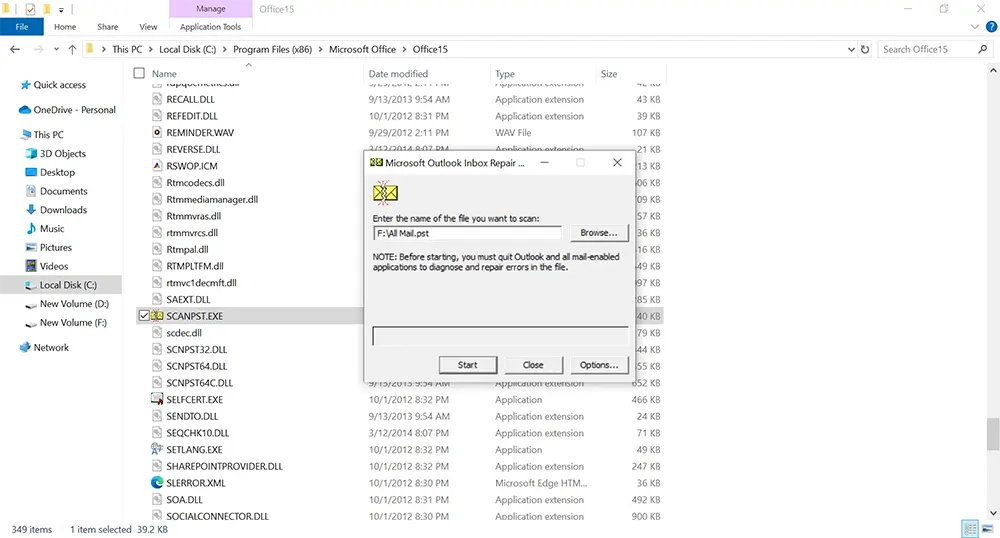
- Start the scan and review the result.

- Enable the backup option before repair (recommended) and run the repair.
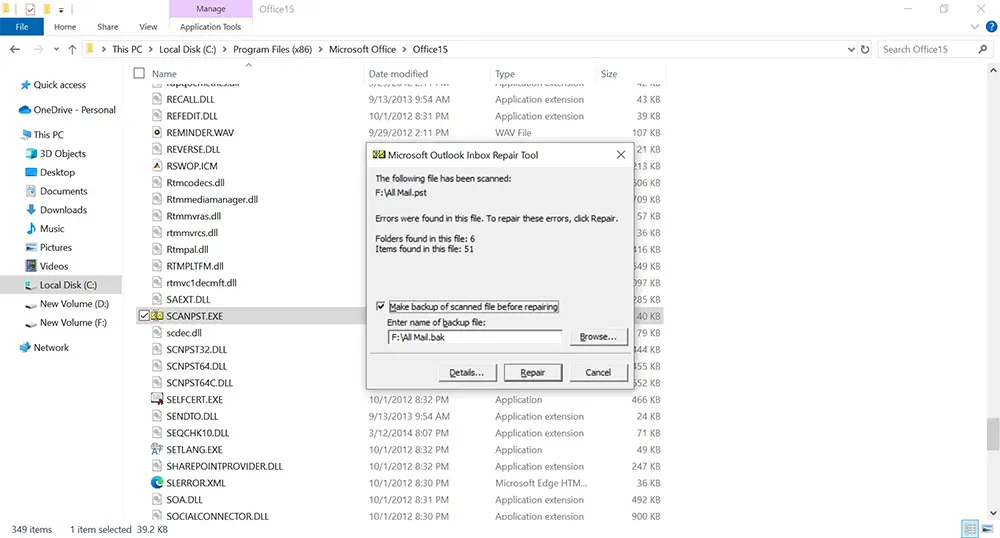
- Repeat the scan if needed until no more errors are reported, then reopen Outlook and test access.

Clarification: Microsoft documents PST and OST on the same support page, but SCANPST is mainly part of the PST repair workflow. For active server-backed OST problems, OST recreation/profile rebuild is usually the first choice instead.
Method 7: When Native Fixes Fail (Choose by File Type)
If the file remains inaccessible after path correction, profile reset, and the appropriate native repair path, use a controlled recovery workflow based on the file type.
| Scenario | Recommended Recovery Workflow |
| PST file still inaccessible after SCANPST or severe corruption suspected | Use a dedicated PST repair/recovery workflow (for example, SysCurve Outlook PST Repair Tool) |
| OST file is orphaned or mailbox source is unavailable | Use an OST recovery/conversion workflow (for example, SysCurve OST to PST Converter) |
SysCurve PST repair workflow (PST file cases)
- Create a backup copy of the original PST file.
- Open SysCurve Outlook PST Repair Tool and add the PST file.
- Allow the tool to scan and preview mailbox items.
- Choose the required recovery/export option and destination path.
- Start processing and validate the repaired output in Outlook before replacing the original workflow file.
SysCurve OST recovery workflow (orphaned/inaccessible OST cases)
- Back up the original OST file.
- Open SysCurve OST to PST Converter and add the OST file.
- Preview the mailbox and select the required folders.
- Choose PST (or another format) and set the output path.
- Run the export and validate the generated PST before deleting the original backup copy.
Important: Always validate folders, sample messages, attachments, and search results in the output file before sign-off.
How to Prevent This Error from Coming Back
- Keep PST files on a stable local drive, not on network shares or removable drives.
- Avoid keeping active PST files in OneDrive-synced folders while Outlook is using them.
- Close Outlook cleanly and avoid forced shutdowns during sync or export.
- Review Outlook add-ins periodically and remove unstable add-ins.
- Use profile reset procedures instead of repeated trial-and-error path changes.
- Create periodic PST backups for business-critical mailboxes and validate them.
Frequently Asked Questions: Outlook Data File Cannot Be Accessed
How do I know if the problem is PST or OST?
Check the file extension in Outlook's Data Files tab if Outlook opens. .pst is a local Outlook data file; .ost is typically a server-backed cache file.
Can an OST file be repaired with SCANPST?
Microsoft documents SCANPST on the general PST/OST support page, but for active Exchange/Microsoft 365/IMAP OST cache problems, recreating the OST and rebuilding the profile is usually the first-line fix.
Why does this happen when my PST is in OneDrive?
OneDrive sync can interfere with active PST access and cause file lock or sync-state conflicts while Outlook is using the file. Use a local path for active PST work.
Can I use a network drive for PST or OST files?
Microsoft documents non-local drive restrictions and related errors when adding Outlook data files. The safest approach is to use local storage.
Will creating a new Outlook profile delete my mail?
No. For server-backed accounts, Outlook usually rebuilds the local cache from the server. For PST-based data, keep a backup and reattach the PST after profile creation if needed.
What if Outlook will not open at all?
Start with Safe Mode and profile diagnostics. If the issue is a PST, run SCANPST on the file. If the file is still inaccessible, use the appropriate recovery workflow by file type.
Sources
- Microsoft Learn: Error when you add a PST or OST file on a non-local drive
- Microsoft Learn: Errors have been detected in your .ost file
- Microsoft Support: Repair Outlook data files (.pst and .ost)
- Microsoft Support: Create an Outlook profile
- Microsoft Support: Edit an Outlook profile
- Microsoft Support: Open Outlook in Safe Mode
- Microsoft Support: How to remove an Outlook .pst data file from OneDrive
- SysCurve Outlook PST Repair Tool
- SysCurve OST to PST Converter
Final Word
The fastest way to fix “Outlook data file cannot be accessed” is to identify the file type first, then apply the right path: local-path/SCANPST for PST, or account/profile/OST rebuild for server-backed caches. Most failed attempts happen when users try PST repair on an OST cache problem or recreate an OST when the real issue is a locked PST path. Use the sequence in this guide, validate results after each step, and escalate to a file-type-specific recovery workflow only when native fixes are exhausted.
